
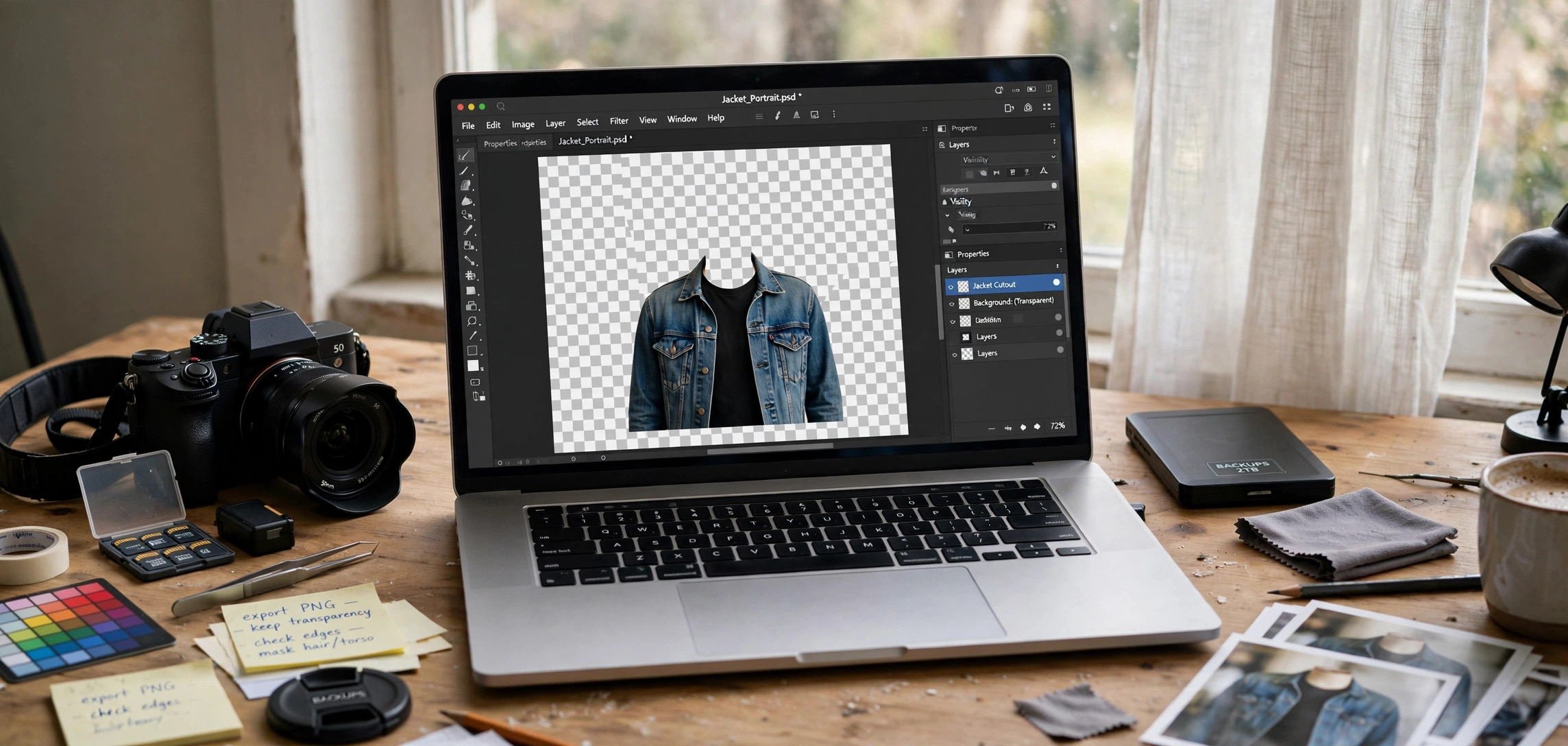
Need to remove image background free with an AI tool that requires no signup? This beginner guide shows you how to get clean, professional cutouts in under a minute — no Photoshop, no account creation, no credit card. Whether you are making a YouTube thumbnail, a product photo, or a profile picture, these six tools handle the hard work automatically.
AI background removers work by detecting the subject of a photo — a person, a product, an animal — and separating it from everything behind it. The technology has become remarkably accurate, handling hair, fur, and semi-transparent edges that used to take professionals half an hour of manual masking. Below are the best genuinely free options, a step-by-step walkthrough, and tips for getting flawless edges.
In This Guide
- How AI Background Removal Works
- 6 Best Free AI Background Removers (No Signup)
- How to Remove a Background in 4 Steps
- 8 Tips for Clean, Professional Cutouts
- Common Problems and Fixes
- Frequently Asked Questions
- Key Takeaways
How AI Background Removal Works
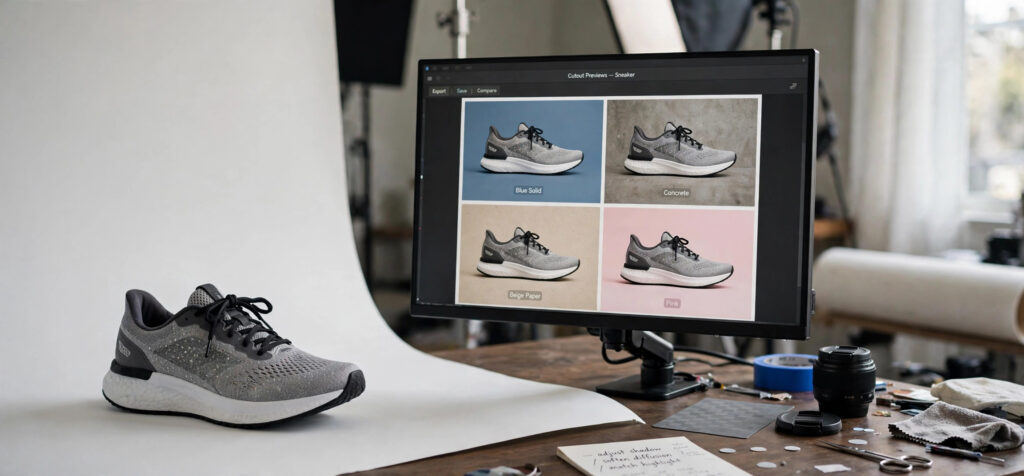 Traditional background removal meant manually tracing around a subject with selection tools — slow, fiddly work. AI tools replace that with a neural network trained on millions of images. The model looks at your photo, identifies which pixels belong to the main subject versus the background, and generates a precise mask in seconds.
Modern models are especially good at the hard parts: individual strands of hair, fur edges, glass transparency, and motion blur. They also handle shadows intelligently, either removing the background cleanly or preserving a natural shadow for realism. The whole process happens in your browser — you upload a photo, the AI processes it on a server, and you download the result as a PNG with transparency.
Understanding this helps you take better source photos. The AI performs best when the subject is clearly separated from the background — good lighting, decent contrast, and a reasonably uncluttered backdrop produce dramatically cleaner masks than dark, blurry photos.
6 Best Free AI Background Removers (No Signup)
These tools let you remove backgrounds without creating an account. Free tiers and limits change frequently, so the notes below reflect the situation at the time of writing — always check the tool’s site for current terms.
1. remove.bg (The Gold Standard)
remove.bg is the most accurate free background remover on the web, and its basic web tool works without an account. Upload a photo and get a clean cutout in about five seconds. The free tier downloads at a reduced resolution (suitable for web use, thumbnails, and social media); full HD downloads need credits or a subscription.
For most beginner projects — YouTube thumbnails, blog images, profile pictures — the free resolution is plenty. The accuracy on hair and complex edges is consistently the best in class, which is why it tops every serious roundup.
2. Erase.bg
Erase.bg offers free background removal without mandatory signup for basic use. Its AI handles people, products, animals, and cars, and it includes simple editing options like background replacement with solid colors or blur effects. The interface is minimal: upload, wait a few seconds, download the PNG.
It is a strong remove.bg alternative when you hit free limits elsewhere. Quality is very close on straightforward subjects, though remove.bg still edges it on the trickiest hair details.
3. Removal.ai
Removal.ai provides free background removal with a clean, fast interface and no account required for basic downloads. Beyond simple cutouts, it offers background templates, custom background uploads, and basic photo editing — handy when you want to drop your subject straight onto a new scene rather than a transparent background.
This is the best pick when your workflow is “cut out subject, place on new background” in one sitting, since you never leave the tool.
4. Adobe Express Background Remover (Free With Account)
Adobe’s free background remover is extremely accurate and worth the one-time free Adobe account if you want it. Once inside Adobe Express, you can remove the background and immediately continue editing — adding text, graphics, and layouts in a proper design tool rather than downloading and switching apps.
Consider this the “power user” free option: slightly more setup, but you get Adobe-quality masking plus a full editor. Pair it with AI-generated backgrounds from Canva to composite entirely new scenes.
5. Pixelcut (Web + Mobile)
Pixelcut’s web tool removes backgrounds quickly without signup for basic use, and its mobile app is one of the best for on-the-phone editing. It is built for e-commerce sellers and social creators, with templates for product shots and profile pictures that apply the cutout automatically.
If you edit mostly on your phone — product photos for a store, or quick social graphics — Pixelcut’s mobile workflow beats every desktop alternative on this list.
6. Slazzer
Slazzer’s web demo removes backgrounds without an account, with free previews you can use for testing. It also offers desktop and mobile apps plus API access for developers. The free web tier is limited, so treat Slazzer as your backup option: excellent quality, but rationed free usage.
A practical strategy is to rotate between remove.bg, Erase.bg, and Removal.ai as your daily drivers, keeping Slazzer and Adobe Express in reserve for difficult images that need a second opinion.
How to Remove a Background in 4 Steps
Step 1: Prepare a Good Source Photo
The AI can only work with what you give it. Use the highest-resolution original you have, ensure the subject is well-lit and in focus, and avoid backgrounds that closely match the subject’s colors (a white shirt against a white wall confuses every tool). If you are shooting new photos specifically for cutouts, a plain contrasting backdrop makes the AI’s job trivial.
Step 2: Upload to Your Chosen Tool
Open remove.bg (or any tool above) and drag your image onto the page. JPG and PNG both work; PNG is preferable if your source already has quality worth preserving. Processing takes 5 to 15 seconds depending on image size and server load.
Step 3: Review the Mask Closely
Zoom in to 100 percent and inspect the edges — hair, fingers, glasses frames, and shoe soles are where errors hide. Look for background “halos” (fringes of old background clinging to edges) and missing chunks of the subject. Most tools offer a manual refine brush for touch-ups; five minutes of edge cleanup here is the difference between amateur and professional results.
Step 4: Download and Use
Download as PNG to preserve transparency. If your destination is a JPG-only platform, composite the cutout onto your chosen background first, then export. Name your files descriptively (“product-cutout-transparent.png”) — future you will thank present you when the project has forty assets.
8 Tips for Clean, Professional Cutouts
- Shoot with separation in mind. Distance between subject and background plus contrasting colors gives the AI clear boundaries to detect.
- Mind the hair. Flyaway hair against busy backgrounds is the hardest case. A quick pass with the refine brush, or slightly reducing the mask edge, usually fixes it.
- Watch for semi-transparency. Glasses, veils, and glass objects need tools that handle alpha transparency — remove.bg and Adobe do this best.
- Remove color fringing. If a green or blue halo remains from the old background, most editors have a “defringe” or “remove halo” option.
- Match lighting when compositing. A cutout pasted onto a background with different light direction looks fake. Flip, recolor, or add a matching shadow.
- Add a subtle shadow. A soft drop shadow grounds the subject on a new background and hides minor edge imperfections.
- Keep originals. Always archive the unedited photo. If you later need a higher-resolution cutout, you regenerate from the original instead of upscaling a processed file.
- Batch similar photos together. Processing a whole product line in one session keeps settings consistent and is far faster than one-offs across a week.
Common Problems and Fixes
Problem: The AI cut off part of the subject. This happens with unusual poses or objects the model does not recognize. Fix it with the manual restore brush, or try a second tool — different models make different mistakes.
Problem: Jagged or blocky edges. Usually caused by low-resolution source images. Start from the highest-resolution original available; upscaling after the fact cannot recover edge detail the AI never saw.
Problem: Background shows through hair or glass. Switch to a tool with better transparency handling, or manually paint the mask in those regions. No free tool is perfect here — patience wins.
Problem: Colors look washed out after download. Some tools strip color profiles. Re-apply saturation and contrast in your editor, or export settings that preserve the original profile.
Frequently Asked Questions
Is there a truly free background remover with no signup?
Yes. remove.bg, Erase.bg, and Removal.ai all offer background removal through their web tools without requiring an account for basic use. Free tiers typically limit download resolution or daily usage, but they are fully functional for web graphics, thumbnails, and social posts.
What image format should I download?
Always download as PNG when you need transparency — JPG does not support transparent backgrounds and will fill the cut-out area with white or black. Use the PNG for compositing, and only convert to JPG as the final export step if your platform requires it.
Can AI background removers handle hair and fur?
Modern tools handle hair and fur remarkably well, far better than manual selection in most cases. Fine flyaway strands against busy backgrounds remain the hardest case; zoom in and touch up those areas with the refine brush for professional results.
Are free background remover tools safe to use?
Reputable tools process images over encrypted connections and delete uploads after processing — check each tool’s privacy policy. As a rule, avoid uploading sensitive documents, ID photos, or private images to any free online tool.
Can I remove backgrounds on my phone?
Yes. Pixelcut’s mobile app and the mobile websites of remove.bg and Erase.bg all work from a phone browser. For quick social media graphics, the phone workflow is genuinely faster than desktop.
What is the best free tool for product photos?
Pixelcut is purpose-built for product photography with templates and background options for e-commerce. For pure cutout accuracy on a single hero product shot, remove.bg’s masking quality is hard to beat.
Key Takeaways
- remove.bg, Erase.bg, and Removal.ai remove backgrounds free with no signup — ideal for thumbnails, product shots, and profile pictures.
- Source photo quality determines result quality: good light, sharp focus, and a contrasting background produce clean masks automatically.
- Always zoom to 100% and inspect edges; five minutes of touch-up separates amateur cutouts from professional ones.
- Download as PNG to keep transparency, and archive your originals for future re-processing.
- Use cutouts with free AI-generated images to build complete thumbnails and graphics without any paid software.
Conclusion
Learning how to remove image background free with an AI tool that needs no signup takes about five minutes and pays off on every visual project afterward. Upload a well-lit photo to remove.bg or one of its alternatives, inspect the edges, download the PNG, and you have a professional cutout ready for thumbnails, product listings, or social graphics. Try it on your next project — once you see a perfect hair-level mask appear in seconds, you will never trace a selection manually again.