
You want to generate an AI image right now — no account creation, no credit card, no email verification loop. A free AI image generator with no signup sounds like exactly what you need, and a handful of tools genuinely offer it. This beginner guide tests the landscape, shows you the 7 best options that let you create images without registering, walks you through using them step by step, and teaches you how to write prompts that get good results on the first try.
In This Guide
- How No-Signup AI Image Generators Work
- 1. Craiyon — The Classic Free Option
- 2. Pollinations.ai — Open API-Style Generation
- 3. Stable Diffusion Online — No-Account Demo
- 4. Dezgo — Simple Text-to-Image Without Login
- 5. Mage.space — Guest Mode Generation
- 6. ChatGPT Image Prompts Technique — Better Results Anywhere
- 7. Perchance AI Image Generator — Unlimited Casual Use
- How to Write Prompts That Actually Work
- Limitations to Know Before You Start
- Frequently Asked Questions
- Key Takeaways
How No-Signup AI Image Generators Work
 Text-to-image AI takes your written description (the “prompt”) and generates a brand-new image from it using a diffusion model trained on millions of pictures. Most serious tools — Midjourney, DALL-E inside ChatGPT, Adobe Firefly — require accounts because image generation costs real computing power, and accounts let providers meter usage.
No-signup tools exist because some providers monetize differently: through ads on the page, optional paid upgrades, API usage, or simply as demos of their technology. The trade-off is usually visible: lower resolution, watermarks on some tools, slower generation during busy hours, and daily limits. For blog illustrations, social posts, mockups, and fun experiments, these free tiers are more than enough.
One honest caveat before the list: free tools change their signup policies frequently. Every tool below offered generation without an account at the time of writing, but if one starts asking for login, just move to the next — that is the advantage of knowing seven instead of one. If you need a polished image for a client project, the free tier gets you the concept; a paid tool gets you the final.
1. Craiyon — The Classic Free Option
Craiyon (formerly DALL-E mini) is the longest-running free image generator on the web, and it still requires no account. Open the site, type a prompt, and it generates nine small images in about a minute.
How to use it: type a descriptive prompt like “a cozy cabin in snowy mountains at sunset, digital painting,” pick an art style from the options (Art, Drawing, or Photo), and hit Draw. You can remove the watermark on downloads with the paid tier, but for drafts and fun it is perfectly usable free.
Best for: quick concepting and playful experiments. Watch out for: images are low resolution and the model is older, so photorealism is limited — lean into illustration styles for the best results.
2. Pollinations.ai — Open API-Style Generation
Pollinations takes a radically open approach: image generation through a simple web interface with no account, no queue system games, and no watermark. You type a prompt and get a full-resolution image back, often in seconds.
How to use it: enter your prompt on their image page, optionally tweak settings like model, size, and seed (the seed number lets you reproduce or iterate on a specific result — note it down when you love an output), and download the result directly.
Best for: developers and tinkerers too, since the same generation is available through a URL-based API with no key required — you can literally hotlink a generated image. Watch out for: as a free open service, availability can vary during peak load.
3. Stable Diffusion Online — No-Account Demo
Several sites host the open-source Stable Diffusion model as a free web demo with no login. These give you access to genuinely capable image generation — the same core technology behind many paid products — directly in your browser.
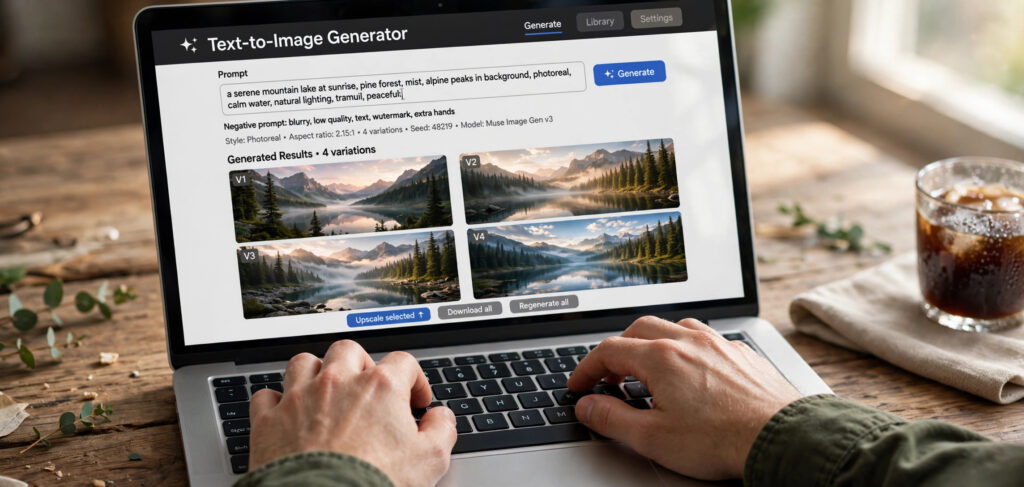
How to use it: enter a prompt, add a “negative prompt” (things you do not want, like “blurry, watermark, distorted hands”), choose an aspect ratio, and generate. The negative prompt field is the secret weapon of Stable Diffusion — it dramatically improves quality.
Best for: the highest quality available without signing up. Watch out for: free demos usually cap daily generations and may queue you behind other users at busy times.
4. Dezgo — Simple Text-to-Image Without Login
Dezgo offers a clean, minimal interface for Stable Diffusion-based generation with no account required for basic use. What sets it apart is control: it exposes settings like guidance scale and sampling steps that most simplified tools hide.
How to use it: type your prompt, set the resolution (higher takes longer), and generate. The “upscale” option can enlarge a result you like. Power users can experiment with different model versions from the dropdown.
Best for: beginners who want to grow into advanced settings gradually. Watch out for: the interface assumes you know what terms like “guidance” mean — the prompt tips section below will get you started.
5. Mage.space — Guest Mode Generation
Mage.space lets you generate images in guest mode without creating an account, with access to multiple Stable Diffusion model variants including ones tuned for photorealism and anime styles.
How to use it: pick a model from the sidebar (each has example images showing its style), write your prompt, and generate. Switching models is the fastest way to change the entire aesthetic of your results without rewriting prompts.
Best for: style exploration — trying the same prompt across five models teaches you more about prompting than any tutorial. Watch out for: guest mode has usage limits; heavy sessions will eventually hit a wall.
6. ChatGPT Image Prompts Technique — Better Results Anywhere
This one is a technique rather than a tool: use a chatbot you already have access to (ChatGPT’s free tier, Gemini, or Claude) to write your image prompts, then paste the refined prompt into any no-signup generator above. AI chatbots are excellent at expanding a vague idea into the detailed, comma-separated descriptive prompt that image models love.
How to use it: tell the chatbot: “Write a detailed text-to-image prompt for: a futuristic treehouse office. Include style, lighting, composition, and mood. Keep it under 60 words.” Paste its output into Craiyon, Pollinations, or Dezgo and compare with your original attempt — the difference is usually dramatic.
Best for: anyone whose generations look “off” and who suspects the prompt is the problem (it almost always is). Our full guide on how to write better ChatGPT prompts covers the prompting techniques that transfer directly to image generation.
7. Perchance AI Image Generator — Unlimited Casual Use
Perchance’s AI tools (including its image generator) run without accounts and without the strict rate limits some competitors impose, making it a solid choice for longer creative sessions — generating dozens of variations while you hunt for the perfect one.
How to use it: describe your image, pick from the available art styles, and generate as many variations as you like. The anti-description field works like a negative prompt — use it to ban common artifacts.
Best for: batch experimentation and fun projects. Watch out for: like all free tools, peak-time speeds vary.
How to Write Prompts That Actually Work
The tool matters less than the prompt. These five rules improve results on every generator above:
1. Be specific about subject, style, and setting
Weak: “a dog.” Strong: “a golden retriever puppy sleeping on a knitted blanket, cozy living room, warm afternoon light, photorealistic.” Every adjective is information the model uses.
2. Name the medium and mood
Add phrases like “digital painting,” “35mm photograph,” “flat vector illustration,” or “cinematic, moody lighting.” Without a style cue, the model guesses — and guesses blandly.
3. Control composition
“Wide landscape shot,” “close-up portrait,” “top-down view,” “rule of thirds” — composition words shape the framing dramatically.
4. Use negative prompts where available
On tools with a negative prompt field, enter “blurry, low quality, watermark, distorted, deformed hands, extra fingers.” This single step fixes the most common AI image flaws.
5. Iterate with seeds and small changes
When a result is close but not right, change one thing at a time — or reuse the same seed number while tweaking the prompt. Random re-rolls teach you nothing; controlled iteration does.
Limitations to Know Before You Start
- Resolution: free outputs are typically 512px–1024px — fine for web, not for print.
- Hands, text, and faces: AI still struggles with fingers, readable text in images, and consistent faces. Design around it (gloves, turned faces, no text) rather than fighting it.
- Copyright: do not generate images of real people’s likenesses or in the exact style of a living artist for commercial use. For blog and personal projects, generated images are generally safe, but check each tool’s terms for commercial use.
- Content filters: all these tools block certain content. If a harmless prompt gets refused, reword it — filters are keyword-triggered and often overzealous.
Once you have generated images, you will often want to clean them up — for example, our guide on removing image backgrounds with a free AI tool pairs perfectly with generated graphics for thumbnails and blog headers.
Frequently Asked Questions
Are free AI image generators really free with no signup?
The tools in this guide generate images without requiring an account at the time of writing. “Free” usually means ad-supported with daily limits — generous enough for casual and blog use, but not unlimited commercial production. Policies change, so if one tool adds a login wall, try the next on the list.
Can I use AI-generated images on my blog or YouTube channel?
Generally yes for the tools listed here, but check each site’s terms of service — some distinguish between personal and commercial use. As a rule, images you generate from your own prompts are yours to use; just avoid real people’s likenesses and trademarked characters.
Why do my generated images look weird or low quality?
Nine times out of ten, it is the prompt. Vague prompts produce vague images. Add subject details, a style (“photorealistic,” “digital painting”), lighting, and composition cues, and use the negative prompt field to ban artifacts like “blurry” and “distorted hands.”
Which free AI image generator is best for photorealistic images?
Stable Diffusion-based tools (options 3, 4, and 5 above) produce the most photorealistic results among no-signup options, especially with detailed prompts and negative prompts. Craiyon is better for playful illustration styles than realism.
Do I need a powerful computer to use these?
No. All the tools in this guide run in your browser — the heavy computing happens on their servers. That is the whole point of web-based generators versus installing Stable Diffusion locally, which does need a strong GPU.
Key Takeaways
- Seven genuinely usable no-signup options: Craiyon, Pollinations.ai, Stable Diffusion Online demos, Dezgo, Mage.space guest mode, the chatbot prompt-refinement technique, and Perchance.
- The prompt matters more than the tool — specific subjects, named styles, lighting, and composition cues transform results.
- Always use the negative prompt field where available to eliminate blur, watermarks, and distorted hands.
- Expect web-resolution output with daily limits; free tiers are ideal for blogs, thumbnails, and mockups.
- Policies change often — if one tool adds a login wall, move down the list instead of signing up in frustration.
- Check each tool’s terms before commercial use, and avoid real likenesses and trademarked characters.
Conclusion
A free AI image generator with no signup is all you need to start creating custom visuals today — no account, no credit card, no waiting. Start with Craiyon or Pollinations for instant results, graduate to Stable Diffusion-based tools when you want more control, and let a chatbot refine your prompts when results disappoint. Remember the core lesson of this beginner guide: the generator renders, but the prompt directs. Invest your effort in describing exactly what you want to see, and these free tools will surprise you with how far they go.