
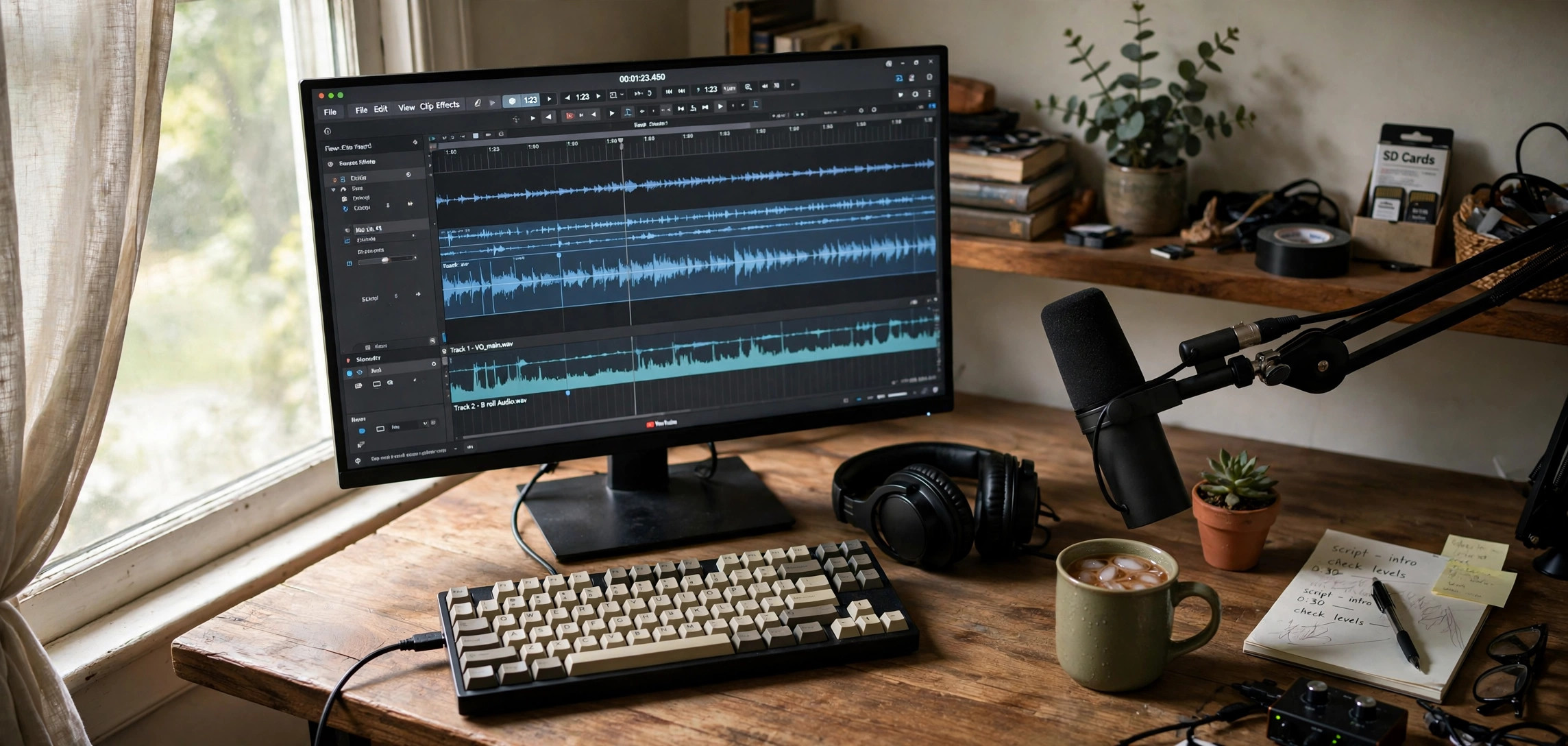
Want to learn how to create AI voiceovers for YouTube videos with free tools? You are in the right place. AI voiceover tools have improved dramatically, and in 2026 you can generate narration that sounds remarkably human without a microphone, a recording studio, or any voice training. This guide walks you through the five best free tools and the exact steps to go from script to a finished video.
Whether you run a faceless channel, make tutorials, or simply dislike hearing your own recorded voice, AI narration can save you hours of recording and re-recording. The catch is that not every free tool is worth your time — some sound robotic, some watermark your audio, and some limit you to a handful of seconds. Below, you will find only tools that genuinely work for real YouTube projects, plus a practical workflow you can copy today.
In This Guide
- Why Use AI Voiceovers for YouTube?
- The 5 Best Free AI Voiceover Tools (2026)
- How to Create an AI Voiceover: 5 Steps
- 7 Tips for Natural-Sounding AI Narration
- YouTube’s AI Disclosure Rules You Must Follow
- Frequently Asked Questions
- Key Takeaways
Why Use AI Voiceovers for YouTube?
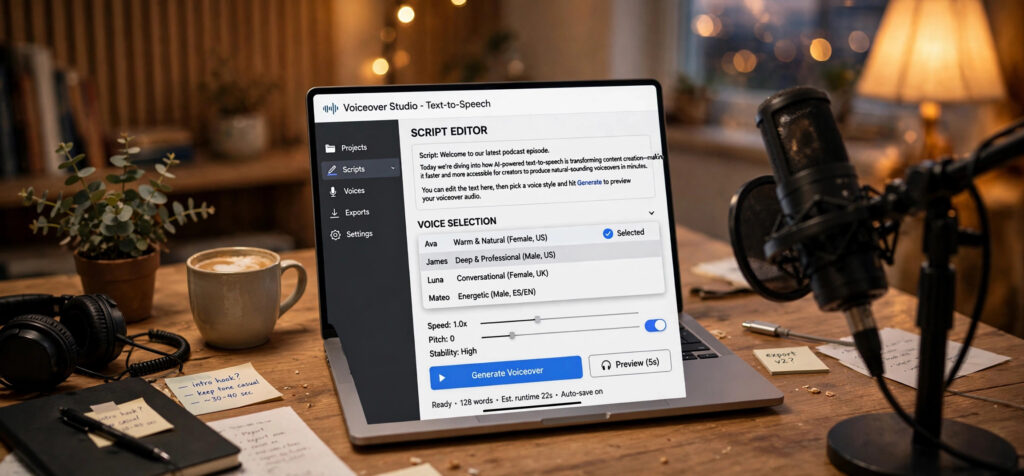 AI voiceovers solve a handful of very real problems that hold new YouTubers back. The most obvious is equipment: a decent microphone costs money, and even a good mic picks up room echo, keyboard clicks, and background noise. A free AI voiceover tool skips all of that and produces clean, studio-quality audio in seconds.
The second problem is consistency. If you record in batches across different days, your voice sounds different in every session. AI voices sound identical every single time, which makes multi-part series and long tutorials feel seamless. You can also regenerate a single sentence if you spot a typo, instead of re-recording an entire section.
Third, AI voiceovers unlock faceless channels. Commentary channels, finance explainers, tech news summaries, and bedtime story channels all run on narration without ever showing the creator’s face. Add a matching free AI-generated thumbnail image and you can run a channel almost entirely from your laptop.
There are limits, of course. Free plans cap how much audio you can generate, commercial licenses vary, and YouTube now requires disclosure of synthetic content. We will cover all of that below so you do not run into surprises after uploading.
The 5 Best Free AI Voiceover Tools for YouTube (2026)
These are the free AI voiceover tools that actually hold up for YouTube work: usable free quotas, decent voice quality, and exports you can drop straight into an editor. Free tiers change over time, so treat the limits below as accurate at the time of writing and double-check on the tool’s pricing page.
1. ElevenLabs (Best Overall Voice Quality)
ElevenLabs set the standard for realistic AI voices, and its free tier gives you around 10,000 characters per month — roughly 8 to 10 minutes of narration. That is enough for several short videos per month. The voices handle punctuation, questions, and exclamations naturally, and you can clone your own voice with the paid plan later.
To use it, paste your script into the text box, pick a voice from the library, adjust stability and clarity if the delivery sounds off, and download the MP3. One practical tip: split long scripts into sections before generating. If one paragraph sounds wrong, you only regenerate that paragraph instead of burning your monthly characters on the whole script.
2. CapCut Text to Speech (Best Fully Free Option)
CapCut’s built-in text-to-speech is completely free with generous usage, which makes it the best no-budget option on this list. Because it lives inside the CapCut editor, the workflow is beautifully simple: paste your script, choose a voice and language, generate, and the audio lands directly on your timeline next to your footage.
CapCut includes a wide range of voices across languages and styles, including upbeat, calm, and deep narrator styles. The quality is not quite at ElevenLabs level, but for tutorials, listicles, and short-form content it is more than good enough — and the fact that narration and editing happen in one place saves serious time.
3. TTSMaker (Best Free Weekly Quota)
TTSMaker offers a free plan with a weekly character allowance (around 20,000 characters per week at the time of writing), which resets — a big deal if you publish often. It supports dozens of languages, multiple voice styles, and lets you download MP3s without complicated sign-up hoops.
The interface is plain but functional: paste text, select a voice, preview, and download. Use TTSMaker when ElevenLabs runs out of characters mid-month. A smart habit is to keep two tools in rotation so a quota limit never stalls your upload schedule.
4. Microsoft Clipchamp (Best for Windows Users)
Clipchamp comes free with Windows 11 and includes a text-to-speech feature powered by Microsoft’s neural voices — the same voice technology behind Edge’s read-aloud feature. You get a solid range of natural voices in many languages, with adjustable pitch and pace.
Like CapCut, the narration is generated inside the editor, so you can line up voiceover with visuals as you go. If you already edit on Windows and want one app that does everything, Clipchamp’s free tier is a strong starting point for your first AI-narrated videos.
5. Narakeet (Best for Presentations and Slide Narration)
Narakeet turns scripts — or even PowerPoint presentations — into narrated videos, and it offers a free trial tier to test the waters. Its strength is long-form narration: it handles large scripts well and produces consistent pacing across thousands of words, which is useful for documentaries and educational content.
Upload or paste your script, choose from hundreds of voices, and Narakeet returns audio (or a full video with your slides). If your channel format is “script plus slides or stock footage,” Narakeet’s pipeline can compress hours of editing into minutes.
How to Create an AI Voiceover: 5 Steps
Here is the exact workflow, tool-agnostic, that you can follow with any of the tools above.
Step 1: Write a Voice-Ready Script
AI voices read exactly what you write, so write for the ear, not the eye. Use short sentences, contractions (“you’ll” instead of “you will”), and simple transitions. Read every line out loud before generating — if you stumble reading it, the AI will stumble too. A 1,000-word script produces roughly 7 to 8 minutes of narration, so plan your video length from the script, not the other way around.
Struggling with scripts? Learning how to write better prompts for ChatGPT can help you draft, tighten, and polish video scripts far faster.
Step 2: Choose the Right Voice
Match the voice to your niche. A calm, measured voice suits finance and meditation content; an energetic voice suits tech news and entertainment. Generate a 30-second sample with your actual script before committing to a full generation — a voice that sounds great on a demo can feel wrong on your content.
Step 3: Generate and Review
Paste your script in chunks of 500 to 1,000 words. Listen to the full result with headphones, not laptop speakers, because artifacts hide in cheap speakers. Mark problem spots with timestamps: mispronounced names, weird pauses, or words read with the wrong emphasis.
Step 4: Fix and Polish the Audio
Regenerate only the problem sentences. Most tools let you tweak pronunciation by respelling words phonetically (for example, writing “read” as “red” when you mean the past tense). Then do light cleanup in an editor: trim silence at the start and end, normalize the volume, and consider a touch of compression so quiet words stay audible.
Step 5: Sync With Your Video
Drop the narration on your timeline first, then cut visuals to the audio — not the other way around. Narration-first editing guarantees the pacing feels natural. Add captions, since a large share of viewers watch with sound off, and your AI voiceover becomes accessible text too.
7 Tips for Natural-Sounding AI Narration
- Punctuate like a speaker. Commas create short pauses; em dashes create longer ones. Strategic punctuation is the cheapest way to make AI speech sound human.
- Break up long sentences. Anything over 20 words tends to flatten out. Shorter sentences give the AI natural places to breathe.
- Spell out tricky words. Brand names, acronyms, and foreign words often need phonetic spelling to be pronounced correctly.
- Vary the pace between sections. Generate intros slightly faster and explanations slightly slower, then stitch them together.
- Avoid over-formatting. Bullet points, tables, and URLs in your script confuse text-to-speech engines. Convert everything to plain spoken sentences first.
- Use SSML sparingly where supported. Some tools accept Speech Synthesis Markup Language tags for explicit pauses and emphasis — powerful, but easy to overdo.
- Always listen at 1x speed. Skimming at 2x hides robotic artifacts your viewers will hear at normal speed.
YouTube’s AI Disclosure Rules You Must Follow
YouTube requires creators to disclose when they publish content containing realistic altered or synthetic material. An AI voiceover on its own — for example, narrating a tutorial — generally falls into the “clearly unrealistic or obviously synthetic” territory for many formats, but the rules specifically call out synthetic voices used to impersonate real people or present scripted content as if a real person said it.
The practical rule: if a viewer could reasonably believe a real person said those words, disclose it. YouTube provides a checkbox in the upload flow under “Altered content.” Checking it adds a label to your video. This is not a penalty — undisclosed synthetic content that misleads viewers is what gets channels in trouble.
Beyond disclosure, monetization matters. YouTube’s reused-content and originality policies mean a channel that is nothing but AI voice reading Wikipedia over stock footage can struggle to get monetized. Add genuine value — original analysis, opinions, curation, or storytelling — and AI narration is just your delivery method. Check the official YouTube Help Center for the current policy wording before you build a channel around this format.
Frequently Asked Questions
Can I monetize YouTube videos with AI voiceovers?
Yes, AI voiceover videos can be monetized as long as they meet YouTube’s advertiser-friendly and originality guidelines. Channels get rejected for reused or low-value content, not for the voice itself. Add original commentary, research, or storytelling and you are on solid ground.
Do I need to disclose AI voiceovers on YouTube?
YouTube requires disclosure of realistic synthetic content. If your AI narration could be mistaken for a real person speaking, use the “Altered content” checkbox during upload. For clearly synthetic or stylized voices, disclosure is less critical, but honesty never hurts.
Which free AI voiceover tool sounds the most realistic?
ElevenLabs consistently produces the most human-sounding results among free options, though its free tier is limited to about 10,000 characters per month. CapCut’s text-to-speech is the best unlimited free alternative and lives inside a full video editor.
How many words do I need for a 10-minute YouTube video?
AI narration runs at roughly 130 to 150 words per minute. A 10-minute video needs about 1,300 to 1,500 words of script. Write your script to the target length first, then generate — regenerating a too-short script wastes your free quota.
Can AI voiceovers speak other languages?
Yes. All five tools in this guide support multiple languages, and most support dozens. Generate a short sample first, because pronunciation quality varies by language, and have a native speaker review important videos when possible.
Key Takeaways
- ElevenLabs has the most realistic voices on a free tier (around 10,000 characters per month); CapCut offers the best fully free text-to-speech inside a video editor.
- Write scripts for the ear — short sentences, contractions, and deliberate punctuation make AI narration sound human.
- Generate audio in chunks so you can fix problem sentences without re-generating the whole script.
- Disclose synthetic content honestly in YouTube’s upload flow and add original value to stay monetizable.
- Pair your narration with strong visuals: use free background remover tools to create clean, professional thumbnails for every video.
Conclusion
Learning how to create AI voiceovers for YouTube videos with free tools is one of the highest-leverage skills a new creator can pick up in 2026. Start with CapCut if you want everything free in one place, graduate to ElevenLabs when voice quality matters most, and always write a script that sounds good when read aloud. Follow the five-step workflow above, disclose synthetic content honestly, and you can publish professional-sounding videos this week — no microphone required.