
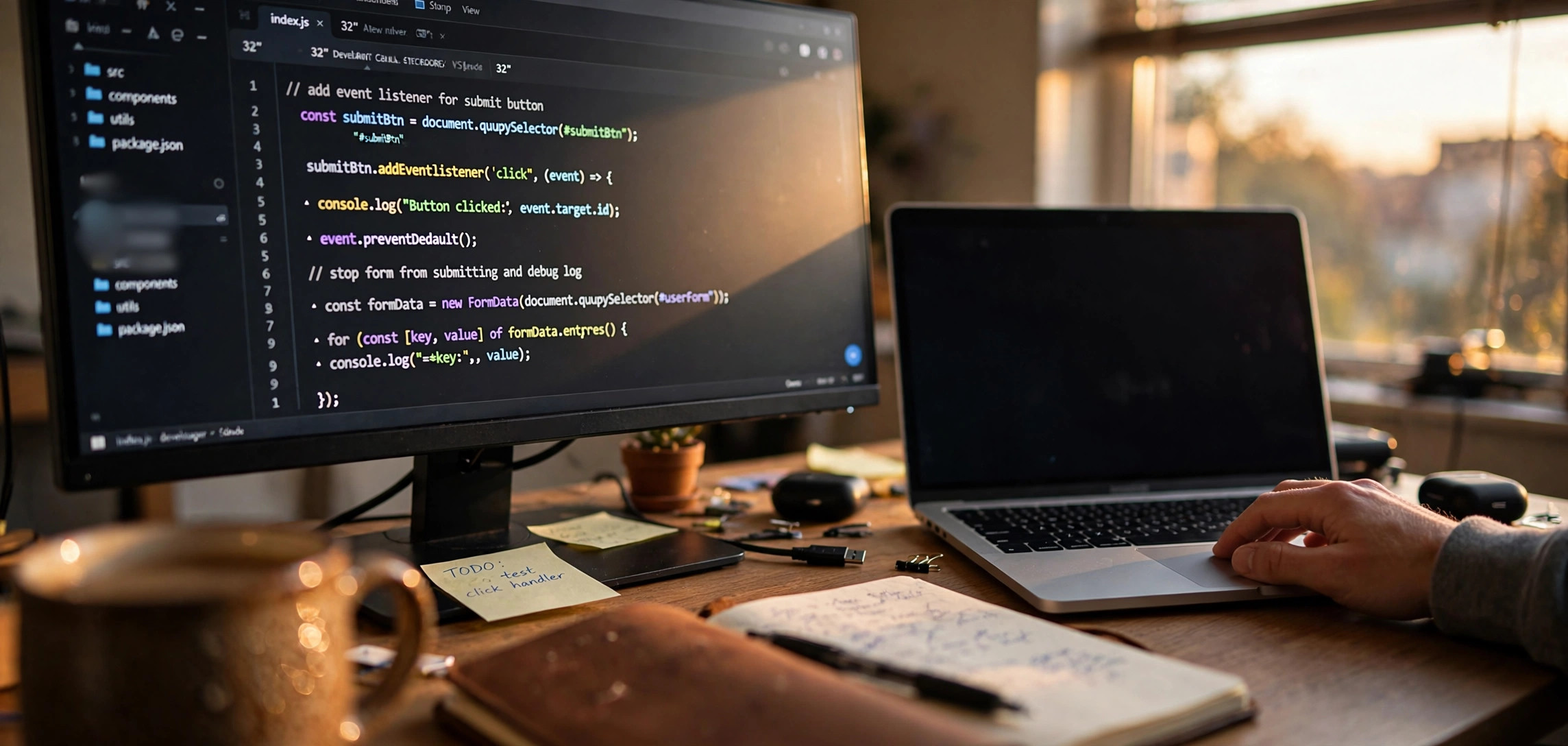
Handling user interaction is at the heart of every modern web page, and the most reliable way to do it is with the addEventListener() method. If you are searching for a javascript addeventlistener explained with examples resource that goes beyond a single line of code, you are in the right place. This guide walks you through the syntax, the most useful options, real-world patterns like event delegation, and the mistakes that trip up beginners — each one illustrated with runnable examples you can paste into a blank HTML file and try yourself.
In This Guide
- What addEventListener() Is and Why It Exists
- The Syntax, Step by Step
- The Event Object: Your Handler’s Best Friend
- Practical Examples You Can Run
- Options: capture, once, and passive
- Removing Event Listeners
- Event Delegation for Dynamic Content
- Common Mistakes and How to Avoid Them
- Frequently Asked Questions
- Key Takeaways
- Wrapping Up
What addEventListener() Is and Why It Exists
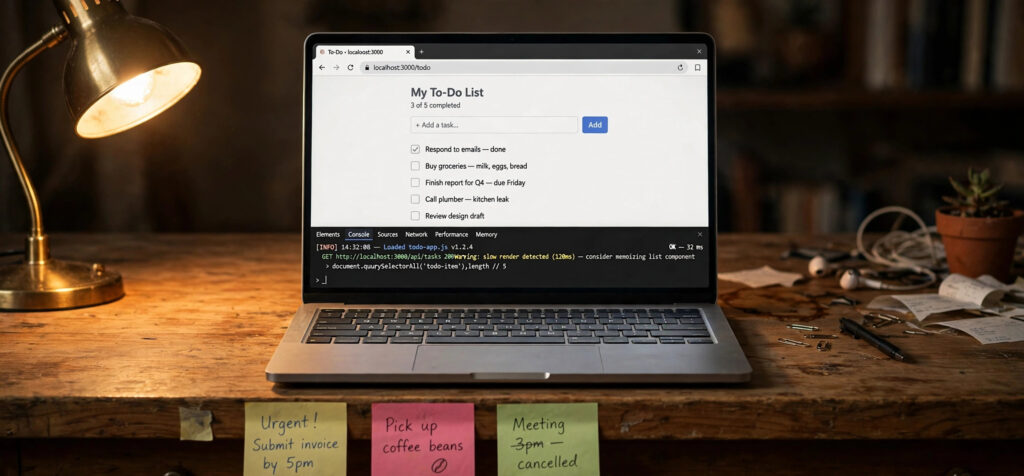
JavaScript programs react to things: clicks, keystrokes, mouse movement, form submissions, a page finishing loading. Each of these is an event. The addEventListener() method registers a function (the “event handler” or “listener”) that runs automatically whenever a specific event fires on a target element.
The method exists on every DOM element and on the document and window objects, because they all implement the EventTarget interface. Older code sometimes assigned handlers directly, like button.onclick = doSomething. That works, but it has a hard limit: only one handler per event type. Assign onclick twice and the second function silently replaces the first. addEventListener() removes that limitation — you can attach as many listeners as you want to the same event on the same element, and they all run in the order they were added.
// Only the second handler survives with onclick
button.onclick = function () { console.log("first"); };
button.onclick = function () { console.log("second"); };
// logs: "second"

// Both handlers run with addEventListener
button.addEventListener("click", function () { console.log("first"); });
button.addEventListener("click", function () { console.log("second"); });
// logs: "first", then "second"
It also gives you finer control through a third options argument (capture, once, passive) and a clean way to remove listeners later with removeEventListener(). Both features are covered below.
The Syntax, Step by Step
The basic signature looks like this:
target.addEventListener(type, listener, options);Parameter 1: type — the event name
The type is a case-sensitive string naming the event, without the “on” prefix. So "click" instead of onclick, "keydown" instead of onkeydown. The most common types you will meet:
click— user clicks (or taps) an elementsubmit— a form is submittedinputandchange— form field values changekeydown,keyup,keypress— keyboard activitymouseover,mouseout,mousemove— pointer movementload— a resource (or the whole page) finished loadingDOMContentLoaded— the HTML is parsed and the DOM is readyscrollandresize— the user scrolls or the viewport changes size
Parameter 2: listener — the function to run
The listener is the function that executes when the event fires. It can be a named function, an anonymous function expression, or an arrow function. When the event fires, the browser calls your listener and passes it an event object as the first argument.
const button = document.querySelector("#myButton");

// Named function — easiest to remove later
function handleClick(event) {
  console.log("Button clicked!", event);
}
button.addEventListener("click", handleClick);

// Arrow function — fine for one-off listeners
button.addEventListener("click", (event) => {
  console.log("Clicked at:", event.clientX, event.clientY);
});
Important subtlety: pass the function itself, not the result of calling it. addEventListener("click", handleClick) is correct; addEventListener("click", handleClick()) runs the function immediately and registers its return value (usually undefined) as the listener — a classic beginner bug.
Parameter 3: options — capture, once, passive
The optional third argument is either a boolean (legacy style: true means use the capture phase) or an options object like { capture: true, once: true, passive: true }. The object form is clearer and covers more ground; see the dedicated section on options for each one in detail.
The Event Object: Your Handler’s Best Friend
Every listener receives an event object packed with information about what happened. Learning to read it is what separates copy-paste coding from actual understanding.
Properties you will use constantly
event.target— the element the event actually happened on (e.g. which list item was clicked)event.currentTarget— the element the listener is attached to (often the same, but not with event delegation)event.type— the event’s name as a string, like"click"event.clientX/event.clientY— mouse position relative to the viewportevent.key— which key was pressed, for keyboard events (e.g."Enter")event.preventDefault()— a method that cancels the browser’s default behavior (stops a link navigating, stops a form submitting, and so on)event.stopPropagation()— a method that stops the event travelling further up (or down) the DOM tree
Practical Examples You Can Run
Each example below is a complete, self-contained HTML file. Save one as demo.html, open it in a browser, and experiment.
Example 1: Toggle text on a button click
The classic first listener — click a button and update a paragraph:
<!DOCTYPE html>
<html>
<body>
  <button id="toggleBtn">Show message</button>
  <p id="message" hidden>Hello from addEventListener!</p>

  <script>
    const btn = document.getElementById("toggleBtn");
    const msg = document.getElementById("message");

    btn.addEventListener("click", () => {
      const isHidden = msg.hidden;
      msg.hidden = !isHidden;
      btn.textContent = isHidden ? "Hide message" : "Show message";
    });
  </script>
</body>
</html>
Example 2: Validate a form on submit
Form submission is one of the most common places beginners get bitten by default browser behavior. Here we intercept the submit event, stop the page reload with preventDefault(), and validate the input ourselves:
<form id="signupForm">
  <input type="email" id="email" placeholder="[email protected]">
  <button type="submit">Sign up</button>
  <p id="formError" style="color: red;"></p>
</form>

<script>
  const form = document.getElementById("signupForm");

  form.addEventListener("submit", (event) => {
    event.preventDefault(); // stop the page from reloading

    const email = document.getElementById("email").value.trim();
    const errorEl = document.getElementById("formError");

    if (!email.includes("@")) {
      errorEl.textContent = "Please enter a valid email address.";
      return;
    }

    errorEl.textContent = "";
    console.log("Form is valid. Email:", email);
    // form.submit(); // uncomment to actually send the form
  });
</script>
This pattern — listen, prevent the default, validate, then act — is the backbone of client-side form handling. If you later add a dark mode switch to that same form page, the technique shown in our guide on how to add a dark mode toggle with JavaScript pairs naturally with it: one listener flips the theme class, another handles the form.
Example 3: Live character counter with the input event
The input event fires on every keystroke, paste, or cut — perfect for live feedback:
<textarea id="bio" maxlength="280" rows="4" cols="40"
  placeholder="Tell us about yourself..."></textarea>
<p><span id="count">0</span> / 280 characters</p>

<script>
  const bio = document.getElementById("bio");
  const count = document.getElementById("count");

  bio.addEventListener("input", (event) => {
    count.textContent = event.target.value.length;
  });
</script>
Example 4: Keyboard shortcut with keydown
Keyboard events let you react to specific keys. A common pattern is submitting a form or triggering an action when Enter is pressed inside a search field:
<input type="text" id="search" placeholder="Type and press Enter">

<script>
  const search = document.getElementById("search");

  search.addEventListener("keydown", (event) => {
    if (event.key === "Enter") {
      console.log("Searching for:", event.target.value);
    }
  });
</script>
Example 5: Window resize and scroll
Listeners are not limited to elements — window and document are valid targets too. Here is a scroll progress bar, a pattern you will see on countless blogs:
<div id="progress" style="position: fixed; top: 0; left: 0;
     height: 4px; background: #2563eb; width: 0;"></div>

<script>
  const bar = document.getElementById("progress");

  window.addEventListener("scroll", () => {
    const scrollTop = window.scrollY;
    const docHeight = document.documentElement.scrollHeight - window.innerHeight;
    const percent = docHeight > 0 ? (scrollTop / docHeight) * 100 : 0;
    bar.style.width = percent + "%";
  });
</script>
Options: capture, once, and passive
The capture option
When an event fires, it travels through the DOM in three phases: capture (window down to the target), target, and bubble (target back up to window). By default, listeners run in the bubble phase. Passing { capture: true } makes the listener run during the capture phase instead — before the event reaches the target.
document.getElementById("outer").addEventListener("click", () => {
  console.log("outer (bubble) — runs after target");
});

document.getElementById("outer").addEventListener("click", () => {
  console.log("outer (capture) — runs before target");
}, { capture: true });
You will rarely need capture in everyday code, but it is essential when you must intercept an event before any child element sees it — for example, a global click tracker or a modal that should close no matter what was clicked inside it.
The once option
{ once: true } automatically removes the listener after it fires the first time. It is ideal for one-shot actions like a “welcome tour” popup or a lazy-load trigger:
document.getElementById("downloadBtn").addEventListener("click", () => {
  console.log("Starting download... (this runs only once)");
  // begin the actual download here
}, { once: true });
Before once existed, developers called removeEventListener() manually inside the handler — more code, more chances for bugs.
The passive option
Some events, notably touchstart and the wheel events on mobile, can be blocked by preventDefault(), which forces the browser to wait for your JavaScript before scrolling. That waiting causes janky scrolling. Passing { passive: true } promises the browser you will not call preventDefault(), so it can scroll immediately:
window.addEventListener("touchstart", (event) => {
  // safe to read touches here, but preventDefault() will be ignored
  console.log("Touch at", event.touches[0].clientX);
}, { passive: true });
Removing Event Listeners
Listeners that are never removed can cause memory leaks in long-running single-page apps: the handler keeps a reference to its element, so the element can never be garbage-collected. The fix is removeEventListener(), but it comes with a strict rule — you must pass the exact same function reference you attached:
function onResize() {
  console.log("Viewport:", window.innerWidth, "x", window.innerHeight);
}

window.addEventListener("resize", onResize);

// ... later, when you no longer need it:
window.removeEventListener("resize", onResize);
This is why named functions (or stored references) matter. Anonymous arrow functions passed inline cannot be removed, because you have no reference to pass to removeEventListener():
// This listener is stuck forever — there is no way to reference it later
window.addEventListener("resize", () => {
  console.log("Viewport:", window.innerWidth);
});
// window.removeEventListener("resize", ???); // nothing to pass
The exception is { once: true } listeners, which clean themselves up automatically. For everything else that gets attached and detached repeatedly — modal open/close handlers, tab switchers, drag interactions — store the function in a variable and remove it when done.
Event Delegation for Dynamic Content
Consider a to-do list where items are added and deleted by the user. Attaching a click listener to every single item breaks the moment a new item is created — the new element has no listener. The professional solution is event delegation: attach one listener to a parent element, and use event.target to figure out which child was actually clicked.
<ul id="todoList">
<li>Buy milk <button class="delete">Delete</button></li>
<li>Walk the dog <button class="delete">Delete</button></li>
</ul>
<button id="addItem">Add item</button>
<script>
const list = document.getElementById("todoList");
// One listener on the parent handles ALL current and future buttons
list.addEventListener("click", (event) => {
if (event.target.classList.contains("delete")) {
event.target.closest("li").remove();
}
});
document.getElementById("addItem").addEventListener("click", () => {
const li = document.createElement("li");
li.innerHTML = 'New task ';
list.appendChild(li); // no new listener needed!
});
</script>Delegation works because click events bubble up from the button to the <ul>. It uses less memory, needs less code, and handles dynamically added elements automatically. You will see this pattern everywhere in production code — menus, tabs, image galleries, and data tables all use it.
Common Mistakes and How to Avoid Them
Mistake 1: Calling the function instead of passing it
// Wrong: runs handleClick immediately, registers undefined
btn.addEventListener("click", handleClick());

// Right: passes the function itself
btn.addEventListener("click", handleClick);
If your handler needs arguments, wrap the call in an arrow function: btn.addEventListener("click", () => handleClick(userId)). This is also a good moment to understand the difference between a missing value and an empty one, which our explainer on JavaScript null vs undefined covers in depth — mixing them up inside handlers is a frequent source of “it works sometimes” bugs.
Mistake 2: Forgetting preventDefault() on forms and links
Without event.preventDefault(), a form submit reloads the page and wipes your JavaScript state. A link click navigates away. Whenever your handler replaces the browser’s built-in behavior, call preventDefault() first.
Mistake 3: Attaching listeners before the DOM exists
If your <script> runs in the <head> before the HTML below it is parsed, document.getElementById("myButton") returns null and addEventListener throws a TypeError. Three reliable fixes: place scripts at the end of <body>, add the defer attribute to the script tag, or wrap your code in a DOMContentLoaded listener:
document.addEventListener("DOMContentLoaded", () => {
  // the whole DOM is parsed here — safe to query elements
  document.getElementById("myButton").addEventListener("click", handleClick);
});
Getting this right starts with well-structured markup — semantic containers make your elements predictable and easy to select. Our beginner-friendly guide to HTML semantic tags shows which elements to use and why it matters for scripting.
Mistake 4: Stacking duplicate listeners
Calling addEventListener() with the same function three times means the handler runs three times per event. This commonly happens when setup code re-runs — for example, inside a function called on every modal open. Guard against it by removing the old listener before re-adding, using { once: true }, or attaching listeners in an initialization routine that runs exactly once.
Mistake 5: Using stopPropagation() to fix the wrong problem
stopPropagation() prevents the event reaching other elements. It feels like a quick fix for “my delegated handler fires twice,” but it often masks a deeper issue like a listener attached twice (Mistake 4) or a nested clickable element. Reach for it only when you genuinely need to isolate an event from ancestors.
Frequently Asked Questions
What is the difference between addEventListener and onclick?
onclick is a property that holds a single handler — assigning it again replaces the previous one. addEventListener() is a method that registers handlers in a list, so multiple listeners can respond to the same event, and it supports the capture, once, and passive options plus clean removal via removeEventListener(). For anything beyond a quick demo, addEventListener() is the standard.
Can I add multiple event listeners to the same element?
Yes — that is one of its main advantages. You can attach several listeners for the same event type (they run in registration order) or different event types entirely, for example both click and mouseover on one button. Each call to addEventListener() adds an independent listener.
How do I pass arguments to an event listener function?
Wrap the call in an arrow function: button.addEventListener("click", (event) => greetUser("Alex", event)). The wrapper receives the event object and forwards it along with your custom arguments. Avoid calling the function directly in the registration (greetUser("Alex")), which executes it immediately instead of on click.
Does addEventListener work on elements added later with JavaScript?
Not directly — a listener attaches only to elements that exist at registration time. For dynamically created elements, use event delegation: attach the listener to a stable parent and inspect event.target to identify which child triggered it. See the delegation section above for a full working example.
Why is my event listener not working?
The usual suspects, in order: the script runs before the element exists in the DOM (see Mistake 3), the event type string is misspelled or capitalized ("Click" will never fire), the function is being called instead of passed (handleClick() vs handleClick), or the selector returns null because the ID does not match. A quick console.log(element) before the addEventListener call diagnoses most of these in seconds.
Should I use the options object or a boolean as the third argument?
Use the options object — { capture: true } is far more readable than a bare true, and it is the only way to access once and passive. The boolean form exists for legacy compatibility and means exactly the same as { capture: boolean }.
Key Takeaways
addEventListener(type, listener, options)registers a handler that runs whenever the named event fires on the target — and unlikeonclick, it supports unlimited handlers per event.- Pass the function itself, not a call to it:
handleClick, neverhandleClick(). Use an arrow-function wrapper when the handler needs extra arguments. - Every handler receives an event object:
event.targettells you what was interacted with,event.preventDefault()cancels default browser behavior, andevent.keyidentifies pressed keys. - The options object unlocks three powers:
{ capture: true }for capture-phase listening,{ once: true }for self-removing one-shot handlers, and{ passive: true }for jank-free scrolling on touch devices. - Remove listeners with the exact same function reference via
removeEventListener()— another reason to prefer named or stored functions over inline anonymous ones. - For lists, menus, and any dynamically generated content, delegate: one listener on a stable parent plus an
event.targetcheck replaces dozens of fragile per-element listeners. - Most “listener not working” bugs come from three causes: script running before the DOM exists, a misspelled event type, or a function called instead of passed.
Conclusion
You now have a working mental model of how events flow through the page and how to hook into that flow cleanly. The patterns in this guide — preventing defaults on forms, reading the event object, delegating for dynamic lists, and cleaning up with removeEventListener() or { once: true } — cover roughly ninety percent of what production JavaScript does with events day to day. This javascript addeventlistener explained with examples walkthrough gave you runnable starting points; the next step is to open a blank page and build something with them — a validated form, a delegated to-do list, a scroll progress bar. Once those feel natural, the method’s finer points, like capture-phase listeners and passive scrolling, will click into place on their own. For the authoritative reference on every event type and option, the MDN documentation for addEventListener() is the definitive source, and the MDN event reference catalogs the full list of event types you can listen for.