
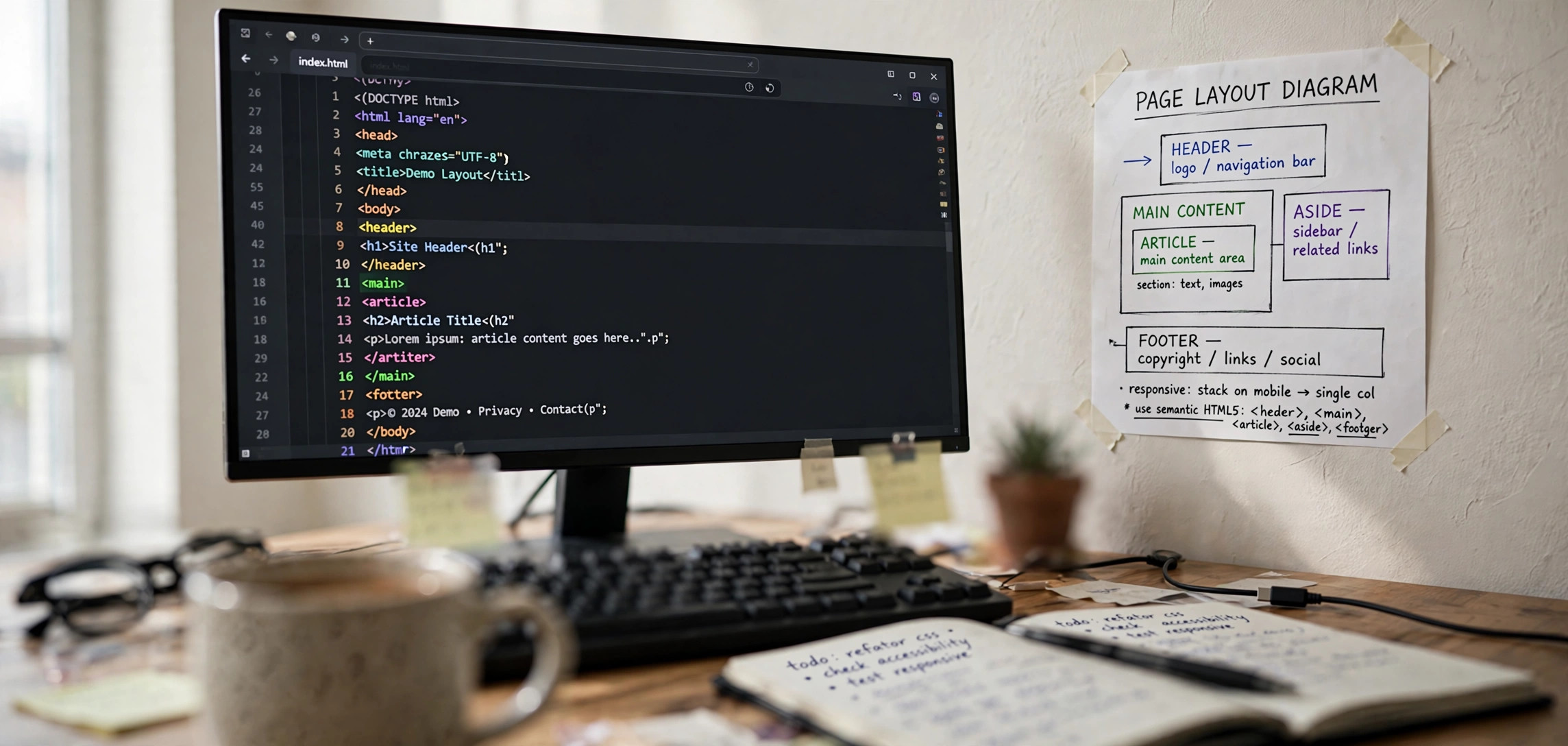
If you have ever opened the source code of a modern website and noticed tags like <header>, <article>, or <footer>, you have already seen semantic HTML in action. This guide to html semantic tags explained with examples is built for beginners who know the basics of HTML and want to write markup that actually means something — to search engines, to screen readers, and to the next developer who reads their code.
Semantic tags describe the meaning of content rather than its appearance. A <div> says “this is a generic container,” while an <article> says “this is a self-contained piece of content.” That difference matters more than it looks: it improves accessibility, helps search engines understand your page structure, and makes your code far easier to maintain.
In This Guide
- What Are Semantic Tags?
- Semantic vs Non-Semantic HTML
- Core Page Layout Tags Explained
- Text-Level Semantic Tags Explained
- Complete Page Example
- Common Mistakes Beginners Make
- Why Semantic Tags Help SEO and Accessibility
- Frequently Asked Questions
- Key Takeaways
What Are Semantic Tags?

A semantic tag is an HTML element whose name describes the purpose or meaning of the content inside it. When a browser, a search engine, or a screen reader encounters <nav>, it knows immediately: “this is a navigation block.” When it encounters <main>, it knows: “this is the primary content of the page.” That built-in meaning is the whole point.
Before HTML5, developers had no choice but to describe page structure with generic <div> elements plus CSS classes:
<div class="header">
  <div class="nav">...</div>
</div>
<div class="main">
  <div class="article">...</div>
</div>
<div class="footer">...</div>
This works visually, but it is meaningless to machines. A screen reader sees nothing but containers. A search engine crawler sees nothing but containers. Semantic HTML replaces these guessable class names with elements the platform understands natively:
<header>
  <nav>...</nav>
</header>
<main>
  <article>...</article>
</main>
<footer>...</footer>
The rendered page looks identical, but the underlying document is now a structured, meaningful outline of the page’s purpose. That is what html semantic tags explained with examples really comes down to: choosing elements for what content is, not what it looks like.
Where Semantic Tags Come From
The current set of semantic elements was introduced in HTML5 (finalized in 2014) to solve the “div soup” problem — pages made of hundreds of nested <div> elements that nobody, human or machine, could parse reliably. The HTML Living Standard maintained by the WHATWG continues to refine how these elements behave, and MDN’s HTML element reference documents every element with its semantic role and usage notes.
Semantic vs Non-Semantic HTML
Understanding the difference starts with a clear comparison. Here is how the two categories line up:
| Semantic tags | Non-semantic tags |
|---|---|
<header>, <nav>, <main>, <article>, <section>, <aside>, <footer> |
<div>, <span> |
| Describe what the content is | Only group content for styling |
| Understood by screen readers natively | Need ARIA roles to expose meaning |
| Help search engines parse structure | Give crawlers no structural hints |
| Self-documenting for developers | Require class names to be understood |
This does not mean <div> and <span> are banned. They are still the right choice when no semantic element fits — for example, a wrapper used only for a CSS grid layout, or an inline styling hook inside a paragraph. The rule is simple: use a semantic element whenever one matches your content’s meaning, and fall back to <div> or <span> only when nothing fits.
A Quick Way to Decide
Before writing a <div>, ask yourself one question: “If I had to describe this chunk of content in one word, would that word be a heading, a navigation menu, an article, a sidebar, a form, or a footer?” If the answer maps to a real HTML element, use that element. If it genuinely doesn’t — a decorative layout box, a JavaScript hook — <div> is fine.
Core Page Layout Tags Explained
These are the workhorses of semantic HTML. They define the large regions of a page: where the header ends, where the main content lives, and where the footer begins.
<header> — The Introductory Block
The <header> element represents introductory content for its nearest ancestor — a whole page, an <article>, or a <section>. A page-level header typically contains the site logo, site name, and primary navigation.
<header>
  <img src="logo.svg" alt="Geekyneard logo">
  <p>Geekyneard — Tech Explainers</p>
  <nav>
    <ul>
      <li><a href="/">Home</a></li>
      <li><a href="/tutorials/">Tutorials</a></li>
    </ul>
  </nav>
</header>
Note that <header> is not limited to one per page. An article can have its own header containing its title, author, and publication date. Just don’t nest a <header> inside another <header> or inside a <footer>.
<nav> — Navigation Landmarks
Use <nav> for major navigation blocks: the primary menu, a table of contents, or pagination. Screen readers list <nav> regions as landmarks, so users can jump straight to the menu without tabbing through everything before it.
<nav aria-label="Primary">
  <ul>
    <li><a href="/html/">HTML</a></li>
    <li><a href="/css/">CSS</a></li>
    <li><a href="/javascript/">JavaScript</a></li>
  </ul>
</nav>
Not every link belongs in a <nav>. A single “back to top” link or the links inside a footer credits line are not major navigation — wrapping them adds noise to the landmark list. Reserve <nav> for genuine navigation structures.
<main> — The Page’s Primary Content
The <main> element marks the dominant content of the page body. There should be exactly one per page, and it must not be nested inside an <article>, <aside>, <header>, <footer>, or <nav>.
<main>
  <h1>HTML Semantic Tags Explained With Examples</h1>
  <p>Article content goes here...</p>
</main>
Screen readers provide a “skip to main content” feature that jumps directly to this element, so getting it right is one of the simplest accessibility wins you can deliver.
<article> — Self-Contained Content
An <article> represents a complete, self-contained composition: a blog post, a news story, a product card, or a forum comment. The test is syndication — if the content would make sense on its own (in an RSS feed, for example), it qualifies as an <article>.
<article>
  <header>
    <h2>How to Write Alt Text for Images</h2>
    <p>By Jane Doe · <time datetime="2026-10-10">October 10, 2026</time></p>
  </header>
  <p>Alt text describes images for people who can't see them...</p>
  <footer>
    <p>Tags: accessibility, SEO</p>
  </footer>
</article>
If you are writing accessibility guidance, pairing semantic articles with good image descriptions matters — our guide on how to write alt text for images covers that half of the equation.
<section> — Thematic Groupings
A <section> groups thematically related content under a heading. Chapters of a tutorial, the steps of a how-to, and the features block of a product page are all good candidates. Every <section> should normally have a heading (<h2>–<h6>) — if you can’t write a heading for it, you probably wanted a <div>.
<section>
  <h2>Getting Started</h2>
  <p>Install a code editor and create your first file.</p>
</section>
<section>
  <h2>Writing Your First Tag</h2>
  <p>Type your first semantic element...</p>
</section>
<aside> — Tangential Content
Use <aside> for content that is related to the surrounding content but could be removed without breaking it: sidebars, pull quotes, related-article lists, and callout boxes.
<aside>
  <h3>Related Reading</h3>
  <ul>
    <li><a href="/css-basics/">CSS Basics</a></li>
    <li><a href="/javascript-basics/">JavaScript Basics</a></li>
  </ul>
</aside>
A common question: sidebar inside or outside <main>? If the sidebar content is directly related to the main content (a table of contents, related posts), it can sit inside. If it is site-wide chrome (ads, global widgets), keep it outside.
<footer> — Closing Content
The <footer> element holds closing content: copyright notices, contact info, sitemap links, and authorship details. Like <header>, it can appear once per sectioning context — a page footer and an article footer can coexist on the same page.
<footer>
  <p>© 2026 Geekyneard. All rights reserved.</p>
  <address>
    Contact: <a href="mailto:[email protected]">[email protected]</a>
  </address>
</footer>
Text-Level Semantic Tags Explained
Semantics don’t stop at page regions. These inline elements describe the meaning of text within a paragraph or heading.
Emphasis and Importance: <em> vs <strong>
<em> marks stressed emphasis (“I really mean it”), while <strong> marks importance (“Warning: do not delete this”). Screen readers change their intonation for <em> and announce <strong> content as important. They are not just italic and bold shortcuts — use CSS when you only want a visual effect.
<p>Never share your <strong>password</strong> with <em>anyone</em>.</p>Figures, Captions, and Media: <figure> and <figcaption>
The <figure> element groups self-contained media — images, diagrams, code listings — with an optional <figcaption> caption. The caption must be the first or last child of the figure.
<figure>
  <img src="semantic-layout.png" alt="Diagram of a page using semantic HTML regions">
  <figcaption>Fig. 1 — A typical page built with semantic regions.</figcaption>
</figure>
Time, Code, and Quotes: <time>, <code>, <blockquote>
Several smaller elements carry precise meaning:
<time datetime="2026-10-17">marks dates and times in a machine-readable format — useful for publication dates and event schedules.<code>marks inline code; wrap multi-line samples in<pre><code>to preserve formatting.<blockquote>marks extended quotations, with an optionalciteattribute pointing to the source URL.<address>marks contact information for the nearest article or page — not arbitrary postal addresses.<mark>highlights text relevant to the user’s current activity, like search-result matches.<abbr title="HyperText Markup Language">HTML</abbr>marks abbreviations, with the expansion in thetitleattribute.
<p>Published <time datetime="2026-10-17">October 17, 2026</time></p>
<blockquote cite="https://html.spec.whatwg.org/">
<p>Authors are encouraged to use elements with the semantics they need.</p>
</blockquote>
<p>Use the <code><main></code> element exactly once per page.</p>If you are building forms as part of your learning, semantic structure applies there too — see our walkthrough on building an HTML contact form without a backend for a form built with proper <label>, <fieldset>, and input semantics.
Complete Page Example
Let’s put everything together. Here is a minimal but complete page skeleton using semantic HTML correctly. Copy it, open it in a browser, and inspect it — it will render as a plain page, but its structure is fully meaningful to machines.
<!DOCTYPE html>
<html lang="en">
<head>
  <meta charset="utf-8">
  <meta name="viewport" content="width=device-width, initial-scale=1">
  <title>My Semantic Page</title>
</head>
<body>
  <header>
    <p>My Site</p>
    <nav aria-label="Primary">
      <ul>
        <li><a href="/">Home</a></li>
        <li><a href="/about/">About</a></li>
      </ul>
    </nav>
  </header>

  <main>
    <article>
      <header>
        <h1>Why Semantic HTML Matters</h1>
        <p><time datetime="2026-10-17">October 17, 2026</time></p>
      </header>

      <section>
        <h2>Accessibility</h2>
        <p>Screen readers announce landmarks...</p>
      </section>

      <section>
        <h2>SEO</h2>
        <p>Search engines parse page structure...</p>
      </section>

      <aside>
        <h3>Did You Know?</h3>
        <p>HTML5 introduced most semantic elements in 2014.</p>
      </aside>

      <footer>
        <p>Filed under: HTML, Accessibility</p>
      </footer>
    </article>
  </main>

  <footer>
    <p>© 2026 My Site</p>
  </footer>
</body>
</html>
Walk through it slowly and notice the nesting logic: <header> and <footer> exist at both the page level and the article level, sections live inside the article, and there is exactly one <main>. This is the document outline that search engines and assistive technologies actually work with.
Common Mistakes Beginners Make
After teaching and reviewing hundreds of beginner pages, the same errors show up again and again. Here are the ones to watch for.
1. Using <section> as a Styling Wrapper
This is the most common mistake by far. Beginners replace every <div> with <section> and end up with “section soup” — just as meaningless as div soup. A <section> without a heading is a red flag. If the block has no heading and no thematic identity, keep the <div>.
2. Multiple <main> Elements
There is exactly one primary content region per page. If your template renders two <main> elements (a common bug in component-based setups), browsers and assistive tech can’t tell which is the real content. Audit your output HTML, not just your templates.
3. Nesting Interactive Elements Wrong
Semantics also govern what can go inside what. A <button> inside an <a> (or vice versa) is invalid HTML, even though browsers render it. Run your markup through the W3C Markup Validation Service early and often — it catches nesting errors in seconds.
4. Confusing <article> and <section>
Remember the syndication test: could this chunk stand alone in an RSS feed? A blog post is an <article>. A “features” block that only makes sense inside its product page is a <section>. When in doubt, articles nest inside sections and pages; sections nest inside articles and pages — but a section rarely contains an article that is really standalone.
5. Skipping Heading Levels
Headings define the document outline alongside semantic regions. Jumping from <h1> to <h4> because “it looks better” breaks the outline for screen reader users who navigate by headings. Style headings with CSS; keep the levels sequential.
Why Semantic Tags Help SEO and Accessibility
Semantic HTML doesn’t directly boost rankings the way a backlink does — no search engine publishes a “semantic markup bonus.” What it does is remove friction: it makes your content easier to parse, which helps crawlers understand what your page is about and which parts matter most.
For accessibility, the impact is direct and measurable. Screen reader users navigate pages by landmarks (<nav>, <main>, <header>, <footer>) and by headings. A page built with semantic regions is navigable in seconds; a div-soup page forces users to listen through everything linearly. That’s the difference between a usable site and an unusable one for millions of people.
The practical payoff for developers is maintainability. Six months from now, <article class="post"> tells you instantly what you’re looking at; <div class="c12 wrapper-x"> tells you nothing. Semantic markup is documentation that never goes stale.
There’s also a systems angle worth understanding: semantic markup describes what your content means in a way machines can act on, which is the same idea behind structured data and APIs. If you want to go deeper on how machines consume structured information, our plain-English guide on what an API is, explained with real-life examples, covers the other half of that picture.
Frequently Asked Questions
Are semantic tags required for a website to work?
No. Browsers will render a page built entirely from <div> and <span> elements just fine. Semantic tags are not about rendering — they’re about meaning. They become effectively required the moment you care about accessibility, SEO clarity, or code that other developers can maintain.
How many semantic tags are there in HTML?
HTML defines roughly a hundred elements, and around two dozen carry strong semantic meaning for document structure and text. You don’t need to memorize the full list. Learn the core layout set — <header>, <nav>, <main>, <article>, <section>, <aside>, <footer> — plus the text-level ones you use daily, and look up the rest on MDN as needed.
Can I use multiple <header> or <footer> elements on one page?
Yes. <header> and <footer> are scoped to their nearest sectioning ancestor, so a page footer and an article footer can coexist. What you can’t do is nest a <header> inside another <header>, or place a <main> inside any of them. One <main> per page, always.
Do semantic tags affect page speed?
Negligibly. The browser parses semantic elements the same way it parses divs. If anything, semantic markup can slightly reduce page weight because you drop the class attributes that div soup requires. Don’t choose semantic tags for performance — choose them for meaning.
Should I replace all my divs with semantic tags?
No. <div> remains the correct element when no semantic element fits — layout wrappers, JavaScript hooks, and styling containers. Forcing a <section> where a <div> belongs creates false semantics, which is worse than no semantics because it actively misleads assistive technology.
What’s the difference between <article> and <section>?
An <article> is self-contained: it makes sense on its own, like a blog post or news story. A <section> is a thematic grouping that belongs to a larger whole, like chapters of a tutorial. Use the syndication test — if the content could appear in an RSS feed and still make sense, it’s an article.
Key Takeaways
- Semantic tags describe what content means;
<div>and<span>only group content for styling. - Learn the core seven first:
<header>,<nav>,<main>,<article>,<section>,<aside>,<footer>. - Use exactly one
<main>per page;<header>and<footer>can repeat per sectioning context. - Every
<section>should have a heading — no heading usually means you wanted a<div>. - Text-level semantics (
<em>,<strong>,<time>,<figure>) matter just as much as layout tags. - Semantic markup improves screen reader navigation directly and helps search engines parse your page structure.
- Validate your markup with the W3C validator to catch nesting errors early.
Conclusion: Put HTML Semantic Tags Explained With Examples Into Practice
The fastest way to internalize html semantic tags explained with examples is to refactor something real. Take a page you’ve already built with divs, replace the generic containers with the elements you’ve learned here — <header>, <nav>, <main>, <article>, <section>, <aside>, <footer> — and run it through the W3C validator. The page will look the same, but it will now speak clearly to search engines, screen readers, and every developer who opens it after you. That’s the real payoff of semantic HTML: markup with meaning.