
Learning how to delete Instagram messages from both sides is simpler than most people expect — Instagram has a built-in “Unsend” feature that removes a message from your chat and the recipient’s chat at the same time. No third-party apps, no hacks, no rooting your phone. This 2026 guide shows you exactly how it works on iPhone, Android, and desktop, plus the limits you need to know.
One important clarification up front: Instagram distinguishes between unsending (removes for everyone) and deleting (removes only for you). Mixing these up is the reason most “it didn’t work” complaints exist. Read the next section first — it takes thirty seconds and saves you frustration.
Unsend vs Delete: The Critical Difference
Instagram offers two different actions, and they do very different things:
- Unsend: removes a message you sent from both your inbox and the recipient’s inbox. The other person can no longer see it. This is the feature you want.
- Delete (conversation): swiping left on a chat and tapping Delete removes the entire conversation from your inbox only. The other person still has every message. This is not a both-sides delete.
In short: “Unsend” = both sides. “Delete” = your side only. Every method below uses Unsend.
How to Delete Instagram Messages From Both Sides (Unsend)
The steps are nearly identical across devices. You can only unsend messages you sent — you cannot unsend messages the other person sent to you.
On iPhone and Android
- Open Instagram and tap the Messenger icon (paper plane) at the top right to open your Direct Messages.
- Open the conversation containing the message you want to remove.
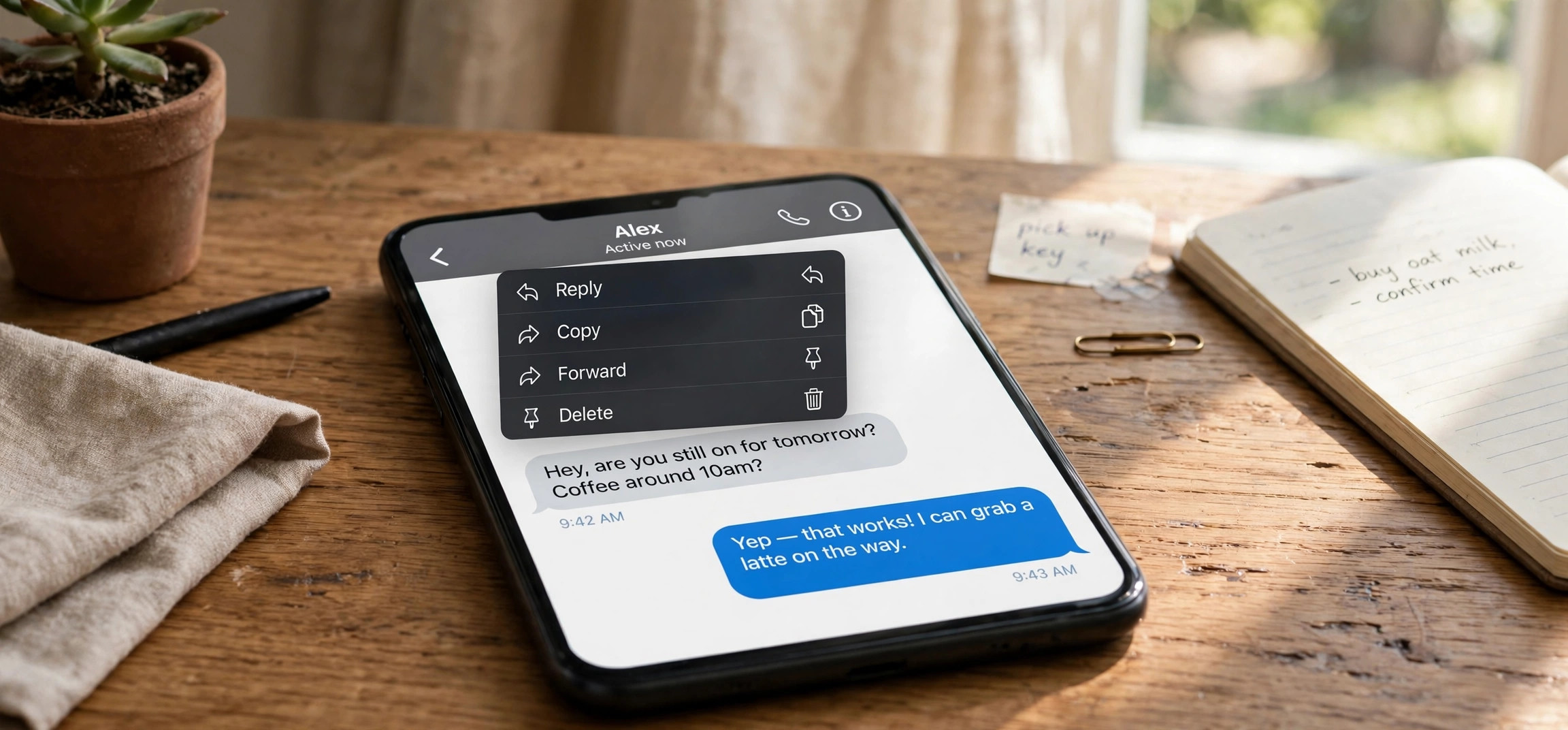
- Tap and hold the specific message (or long-press it) until a menu appears.
- Tap Unsend.
- Confirm by tapping Unsend again in the pop-up.
The message vanishes from the chat immediately — on your phone and on the recipient’s devices. There is a subtle animation, but no dramatic confirmation beyond the message disappearing.
On Desktop (Instagram Web)
- Go to instagram.com and click the Messenger icon in the left sidebar.
- Open the conversation.
- Hover over your message and click the three-dot menu (⋯) that appears.
- Click Unsend, then confirm.
The desktop flow works exactly like mobile. Instagram’s official help pages at help.instagram.com document the same steps if you ever want to verify the current interface.
Limits of Unsend You Should Know
Unsend is powerful, but it is not magic. Here are the boundaries:
| Question | Answer |
|---|---|
| Is there a time limit? | No. Unlike some apps, Instagram lets you unsend messages regardless of age — even months-old ones. |
| Can I unsend someone else’s messages? | No. You can only unsend messages you sent. |
| Does the other person get notified? | No notification is sent. However, if they already read it — or screenshotted it — unsending cannot undo that. |
| Does it work in group chats? | Yes. Unsending removes your message for every participant in the group. |
| Can I unsend a photo or video? | Yes. Unsend works on text, photos, videos, voice messages, and shared posts alike. |
| Is there a mass-unsend option? | No. Instagram requires unsending messages one at a time. There is no native bulk option. |
The screenshot caveat deserves emphasis: unsend removes the message from Instagram’s servers and apps, but nothing can retract a screenshot or screen recording the recipient already took. If the content was sensitive, unsend promptly — speed matters more than anything else.
Can You Delete an Entire Conversation From Both Sides?
Short answer: no, not natively. Instagram provides no “delete entire chat for everyone” button. Your options for a full conversation are:
- Unsend each message individually — tedious for long chats, but it is the only way to clear your side of the history from both inboxes.
- Delete the conversation (your side only) — swipe left on the chat in your inbox list and tap Delete. Your inbox is clean; theirs is untouched.
- Vanish Mode — for future messages, swipe up in a chat to enable Vanish Mode, where messages disappear after they are seen and you leave the chat. It does not retroactively delete old messages.
Be wary of any website or app promising “mass delete Instagram DMs for both sides.” These are third-party tools that require your login credentials, which violates Instagram’s terms and puts your account at risk of being hacked or banned. Instagram’s official stance is clear: only use in-app features for message management.
What Does the Other Person See After You Unsend?
From the recipient’s perspective, the message simply disappears. Instagram does not insert a “this message was unsent” placeholder in the chat (unlike WhatsApp’s “message deleted” notice). The conversation otherwise looks normal — which means the other person may not even notice unless they were actively reading the chat when it vanished.
That said, there are indirect tells: if they had notifications enabled, the push notification preview with your message text may still sit in their phone’s notification history. And if they already opened the chat, they have seen it. Unsend is a removal tool, not a time machine.
Blocking as a Last Resort
Blocking someone does not delete your messages from their inbox — the chat history remains visible to them. What blocking does is prevent further contact and hide your profile. If your goal is specifically to remove sent messages, unsend them before blocking. Once you have unsent everything you want gone, blocking adds a layer of distance, but it is not a deletion method on its own.
A related tip for creators and businesses: keeping your public-facing content polished matters as much as your DMs. If you share photos on Instagram, free background-removal tools can clean up product shots, and writing good alt text makes your posts more accessible.
How to Confirm Your Message Was Really Unsent
After unsending, it is worth verifying the message is actually gone rather than assuming. Open the conversation and scroll to where the message was — it should be absent with the surrounding messages flowing together naturally. If you still see it, the unsend did not go through (usually a connectivity hiccup); tap and hold it again and repeat the steps.
For extra certainty on important messages, check from a second angle: open Instagram on a different device or in a desktop browser and view the same conversation. Because unsend is server-side, the message should be gone everywhere simultaneously. If it persists on one device, force-close and reopen the app to clear the local cache. And remember the hard truth from the limits table: verification only confirms removal from Instagram itself — it cannot confirm whether the recipient screenshotted the message before you acted.
Unsend, Restrict, Block, or Report: Which Should You Use?
Unsending solves the “I sent something I regret” problem, but Instagram offers neighboring tools for neighboring problems. Here is how to choose:
- Unsend — you sent a message and want it gone from both sides. Best for typos, wrong-chat sends, and second thoughts.
- Restrict — someone is bothering you but you do not want a confrontation. Their messages land in a hidden requests folder, and they cannot see when you are online.
- Block — you want zero contact. They cannot message, view, or find your profile. Combine with unsend first if old messages need to disappear too.
- Report — the message content itself violates policies (harassment, threats, spam). Reporting alerts Instagram’s moderation team and is the right move when someone else’s behavior is the problem.
These tools stack: a common pattern is to unsend your own regretted messages, then restrict or block the other party to prevent follow-ups. Use the lightest tool that solves your actual problem — most “delete my message” situations need nothing more than Unsend.
Frequently Asked Questions
How do I delete Instagram messages from both sides without them knowing?
Use Unsend: tap and hold your message, tap Unsend, and confirm. Instagram sends no notification for unsent messages and leaves no placeholder in the chat. The only traces could be a lingering push-notification preview or a screenshot the recipient already took.
Why can’t I unsend a message on Instagram?
The most common reasons: you are trying to unsend someone else’s message (only your own can be unsent), your app is outdated (update it), or you are tapping the wrong menu — make sure you tap and hold the message bubble itself, not the conversation. A poor connection can also cause the Unsend option to fail silently; retry on stable Wi-Fi.
Does unsending work on messages sent a long time ago?
Yes. Instagram does not impose a time limit on unsending. You can unsend a message from months or even years ago, and it will disappear from both sides just the same.
Can the other person still see an unsent message in their email notifications?
Instagram does not email message contents, so there is nothing to find there. The realistic risks are push-notification previews on their lock screen and screenshots. Unsending promptly minimizes both.
If I delete the whole conversation, does it delete for the other person?
No. Deleting a conversation (swipe left, then Delete) removes it only from your inbox. The other person keeps the full history. To remove content from both sides, you must unsend your messages individually.
Does Vanish Mode delete old messages?
No. Vanish Mode only affects messages sent while it is active — those disappear after being seen and closing the chat. Messages sent before enabling Vanish Mode stay put until you unsend them manually.
Conclusion
How to delete Instagram messages from both sides comes down to one feature: Unsend. Tap and hold any message you sent, hit Unsend, and it is gone from both inboxes — no time limit, no notification, no placeholder. Just remember its boundaries: it cannot retract screenshots, it works one message at a time, and “Delete conversation” only cleans your side. For everything else, unsend early and unsend often.