
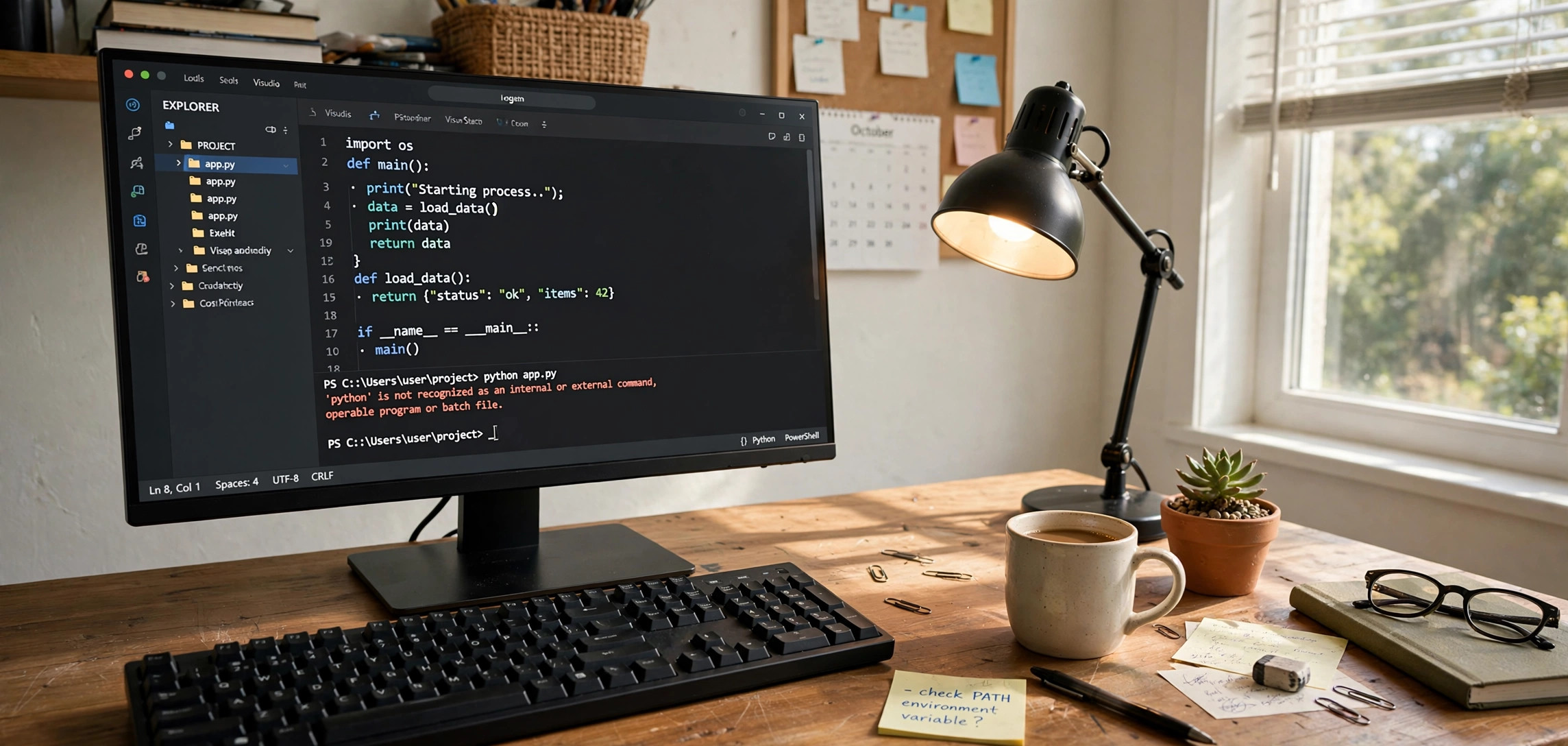
You press the Run button in VS Code and get the dreaded message: 'python' is not recognized as an internal or external command. Your code is fine — VS Code simply cannot find Python on your system. This guide gives you 4 quick fixes for the “Python not recognized as internal or external command” error in VS Code, ordered from fastest to most thorough, so you can get back to coding in minutes.
First, a one-sentence explanation of what is happening: when you type python, your operating system searches a list of folders called PATH for a program named python. If Python was installed without adding itself to that list — or if VS Code is looking at a different Python than your terminal — the lookup fails and you see this error. Every fix below is about making sure the right Python is visible in the right place.
In This Guide
- What “Not Recognized” Actually Means
- Fix 1: Select the Correct Python Interpreter in VS Code
- Fix 2: Add Python to Your System PATH
- Fix 3: Reinstall Python With “Add to PATH” Checked
- Fix 4: Check the Terminal, Code Runner and Settings
- Still Broken? The Full Diagnostic Checklist
- Frequently Asked Questions
- Key Takeaways
- Conclusion
What “Not Recognized” Actually Means
 The full error on Windows reads:
'python' is not recognized as an internal or external command,
operable program or batch file.
On macOS and Linux you will more likely see command not found: python or zsh: command not found: python. All of these mean the same thing: the shell looked through every folder in PATH and found no executable called python.
Three situations cause this in practice:
- Python is installed but not on PATH. The Windows installer has an “Add python.exe to PATH” checkbox that is unchecked by default in older installers, and many beginners skip past it. The files exist on disk; the system just does not know where.
- Python is not installed at all. VS Code is an editor, not a Python distribution — installing VS Code does not install Python.
- VS Code and the terminal disagree. The integrated terminal inherits PATH from how VS Code was launched, and the Python extension has its own interpreter setting. One can work while the other fails, which is why the error sometimes appears only when you press Run.
Before fixing anything, diagnose. Open a system terminal — Command Prompt or PowerShell on Windows, Terminal on macOS/Linux, not the VS Code one yet — and run:
python --version
python3 --version
If one of these prints a version, Python exists and this is a PATH or VS Code configuration problem (Fixes 1 and 2). If both fail, Python is missing or fully off PATH (Fixes 2 and 3).
Fix 1: Select the Correct Python Interpreter in VS Code
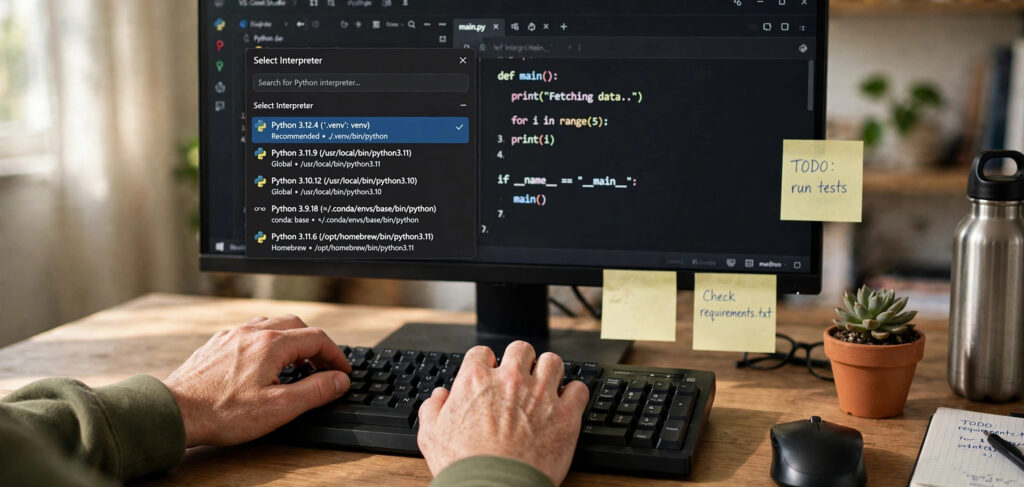
This is the fastest fix and solves the problem when Python works in your system terminal but not inside VS Code. The Python extension runs code with whichever interpreter is selected for the workspace, and that selection is often wrong or empty after a fresh install.
How to select the interpreter
- Press
Ctrl+Shift+P(orCmd+Shift+Pon macOS) to open the Command Palette. - Type
Python: Select Interpreterand press Enter. - Pick the Python installation you want — for example
Python 3.12.x 64-bitat a path likeC:\Users\You\AppData\Local\Programs\Python\Python312\python.exe. - The chosen version appears in the bottom-right status bar. Run your file again.
If the list is empty or shows only a Microsoft Store stub, the extension cannot see any real Python, and you need Fix 2 or 3 first. One common Windows trap: the list shows Python 3.x (Microsoft Store) which is a stub that opens the Store instead of running Python. If you see it behaving that way, disable the “App execution aliases” for Python in Windows Settings (search “Manage app execution aliases”) and select the real installation instead.
Verify inside VS Code
Open the integrated terminal with Ctrl+` and run python --version there. If it works in the integrated terminal but the Run button still fails, the issue is the extension’s interpreter setting rather than PATH — re-check the status bar selection and make sure the Python extension (by Microsoft) is installed and enabled for the workspace.
Fix 2: Add Python to Your System PATH
If python --version fails in a fresh system terminal, Python is invisible to the shell. Adding it to PATH makes the python command work everywhere: system terminals, the VS Code terminal, and build tools.
Windows: add Python to PATH manually
- Find where Python is installed. The default is
C:\Users\YourName\AppData\Local\Programs\Python\Python312(the version number varies). If you are unsure, search forpython.exein File Explorer. - Open Start, search for “Edit the system environment variables,” and click it.
- Click Environment Variables, select Path under your user variables, and click Edit.
- Click New and add the Python folder, e.g.
C:\Users\YourName\AppData\Local\Programs\Python\Python312. - Click New again and add the Scripts folder too:
C:\Users\YourName\AppData\Local\Programs\Python\Python312\Scripts— this is wherepiplives. - Click OK on every dialog, then close and reopen all terminals (and VS Code). Environment changes do not apply to already-open windows.
Reopen a terminal and run python --version. If it prints a version, PATH is fixed. If you also want a refresher on navigating and managing files from the command line while you are here, our Ubuntu terminal commands cheat sheet covers the essentials (the concepts transfer directly to PowerShell and Command Prompt).
macOS and Linux: PATH is usually fine, check the name
On macOS and Linux, Python 3 is typically installed as python3, not python — so python --version failing while python3 --version works is normal, not a bug. You have two options: always type python3 (and pip3), or create an alias. For a permanent alias on macOS (zsh) or Linux (bash), add this line to ~/.zshrc or ~/.bashrc:
alias python=python3
alias pip=pip3
Then reload the file with source ~/.zshrc (or source ~/.bashrc) and test python --version again. If even python3 fails, install Python from python.org (macOS) or your package manager (sudo apt install python3 python3-pip on Ubuntu).
Fix 3: Reinstall Python With “Add to PATH” Checked
If Python is missing entirely, or Fix 2 felt too fiddly, a clean reinstall is the most reliable path — it takes five minutes and the installer does the PATH work for you.
- Download the latest stable Python from python.org. Avoid the Microsoft Store version for development work; the python.org installer gives you full control.
- Run the installer. On the very first screen, check the box labeled “Add python.exe to PATH” at the bottom. This single checkbox prevents the entire class of problems this article is about.
- Click Install Now (or “Customize installation” if you want to change the location).
- When it finishes, close every terminal and VS Code window, reopen a fresh terminal, and verify:
python --version
pip --version
Both commands should print version numbers. If pip is missing, repair it with python -m ensurepip --upgrade, then upgrade it with python -m pip install --upgrade pip.
On Ubuntu or Debian, the equivalent fresh start is:
sudo apt update
sudo apt install python3 python3-pip python3-venv
After reinstalling, go back to Fix 1 and re-select the interpreter in VS Code — the old selection may still point at the removed installation.
Fix 4: Check the Terminal, Code Runner and Settings
Sometimes Python works in the system terminal and the interpreter is correctly selected, yet the Run button still fails. The culprit is usually a VS Code setting or extension overriding the command.
Restart the integrated terminal
The integrated terminal loads PATH when it starts. If you fixed PATH while VS Code was open, the old terminal still has the old PATH. Kill it (trash-can icon) and open a new one with Ctrl+`. Better yet, restart VS Code entirely after any PATH change.
Check the Code Runner extension
If you use the popular Code Runner extension, it has its own executor map that may say python where your system needs python3 (common on macOS/Linux). Open Settings (Ctrl+,), search for “Code-runner: Executor Map,” click “Edit in settings.json,” and make sure the python entry matches your working command:
"code-runner.executorMap": {
    "python": "python3 -u"
}
Alternatively, switch to the official Python extension’s Run button (the play icon with “Run Python File” on hover), which respects the selected interpreter from Fix 1.
Inspect python.defaultInterpreterPath
In VS Code settings, search for “Python: Default Interpreter Path” and make sure it is either empty (so workspace selection wins) or points at a real python.exe / python3 binary. A stale path here silently overrides everything else.
Still Broken? The Full Diagnostic Checklist
If none of the four fixes worked, run through this checklist in order — one of these steps will reveal the problem:
- Fresh system terminal test: open Command Prompt / Terminal outside VS Code and run
python --version. If this fails, the problem is system-wide (Fix 2 or 3), not VS Code. - Echo the PATH: run
echo %PATH%(Windows Command Prompt),$env:Path(PowerShell), orecho $PATH(macOS/Linux) and confirm your Python folder actually appears in the output. - Locate the binary: run
where python(Windows) orwhich python3(macOS/Linux). If it points atC:\Users\...\AppData\Local\Microsoft\WindowsApps\python.exe, that is the Store stub — disable app execution aliases or install from python.org. - Check for multiple Pythons:
where pythoncan list several. The first match wins. Uninstall versions you do not need via Settings > Apps, and keep one python.org installation. - Re-select the interpreter in VS Code after every change (Fix 1) and restart the editor — stale selections are the number-one reason a correct system setup still fails inside VS Code.
- Check antivirus interference: overzealous antivirus software occasionally quarantines
python.exeafter installation. If the file vanished from its folder, check your antivirus quarantine before reinstalling a third time.
Once Python runs, the next beginner wall is usually a missing package — our guide to fixing Python’s ModuleNotFoundError picks up exactly where this one leaves off.
Frequently Asked Questions
Why does python work in Command Prompt but not in VS Code?
Because VS Code’s Python extension uses its own interpreter setting, and its integrated terminal may have been started before you fixed PATH. Re-select the interpreter with “Python: Select Interpreter,” kill the old integrated terminal, and restart VS Code.
Should I use python or python3?
On Windows, python is correct. On macOS and Linux, the command is usually python3 (plain python may not exist or may point to Python 2). When in doubt, run python3 --version and python --version and use whichever prints Python 3.x.
Do I need to check “Add to PATH” during installation?
Yes — always. It is the difference between python working everywhere instantly and an afternoon of debugging. If you already installed without it, either add PATH manually (Fix 2) or reinstall with the box checked (Fix 3).
Why does VS Code open the Microsoft Store when I run Python?
Windows ships a stub python.exe that opens the Store. It takes priority when no real Python is on PATH. Install Python from python.org, then disable the stub under Settings > Apps > Advanced app settings > App execution aliases.
Will reinstalling Python delete my packages?
Reinstalling over the same version and location generally preserves your site-packages, but virtual environments are tied to a specific interpreter path and may need recreating. Export a requirements.txt first with python -m pip freeze > requirements.txt so you can reinstall everything afterward.
What is the difference between the system terminal and the VS Code terminal?
The VS Code integrated terminal is a real shell, but it inherits its environment from the VS Code process, which may have started before your PATH changes. The system terminal is independent. Always verify PATH fixes in a brand-new system terminal first.
Key Takeaways
- “Not recognized” means the shell cannot find a
pythonexecutable in PATH — it is a visibility problem, not a code problem. - Fix 1 (select the interpreter in VS Code) is the fastest when Python already works in a system terminal.
- Fix 2 (add Python to PATH manually) and Fix 3 (reinstall with “Add python.exe to PATH” checked) solve system-wide invisibility — always check that box on install.
- On macOS/Linux, the command is usually
python3, notpython; an alias bridges the gap. - After any PATH change, close and reopen all terminals and VS Code — old windows keep the old environment.
Conclusion
Fixing “Python is not recognized as an internal or external command” in VS Code comes down to visibility: make sure Python is installed, make sure it is on PATH, and make sure VS Code’s selected interpreter points at that installation. Work through the four fixes in order — interpreter selection, PATH, clean reinstall, terminal and extension settings — verifying with python --version at each stage, and the error will be gone for good. Your next script will run on the first try.